
The Tasks module is where you plan, schedule, and track all your content work in one place. Open it from Tasks in the left sidebar. This guide walks through the three things you'll do most.
Why you'd use it
One work queue for the whole platform. Every AI suggestion Zocket surfaces, a fatigued creative, a saturated audience, a spiking complaint, a trending story worth jumping on, can become a tracked, owned, dated task here. Observations become work someone owns, rather than notes that get lost.
Step 1 — See your task status at a glance
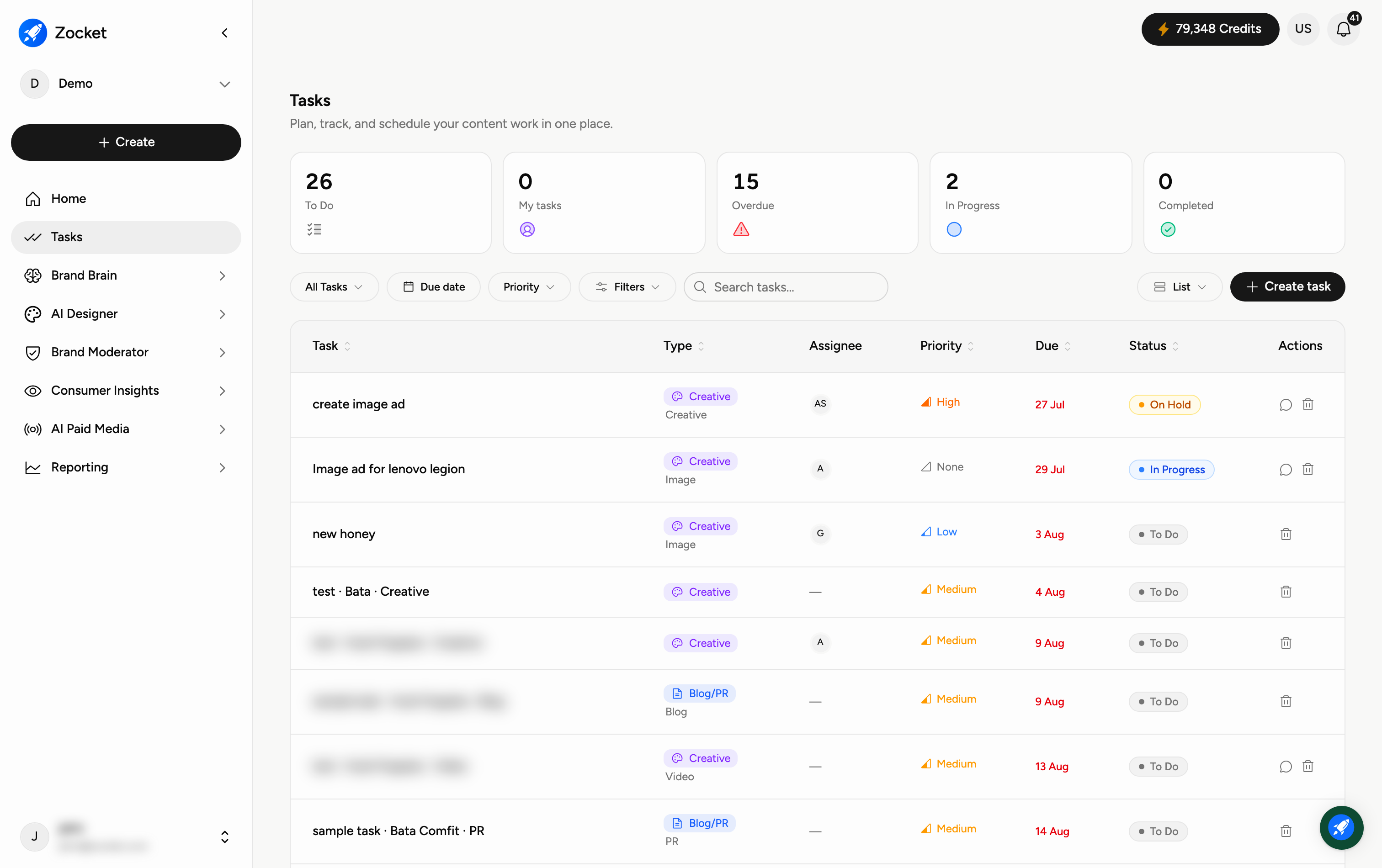
At the top of the Tasks page, five cards give you an instant summary of your workload: To Do, My tasks, Overdue, In Progress, and Completed. Each shows a live count so you can spot what needs attention (especially anything Overdue) before you dive in.
Step 2 — Filter, search, and switch views
Use the controls below the summary cards to focus on the tasks you care about:
All Tasks / Priority / Filters — narrow the list by type, priority, or other attributes.
Search tasks… — jump straight to a task by name.
Month / Week — switch how much of the calendar you see at once.
Today and the arrow buttons — move around the calendar; Today snaps back to the current date.
Calendar — change the view (for example, calendar vs. list).
Step 3 — Create a task
Click the black Create task button (top-right of the controls). A window asks "What do you want to create?" with three ways to add work:
Create single task — add one task and pick its type inside. Best for a one-off piece of work.
Plan a campaign — set a volume per sub-brand and Zocket drafts a task for every sub-brand and content type. Best for planning at scale.
Import from document — upload a spreadsheet, document, or brief and AI drafts the tasks for you to review. Best when your plan already exists elsewhere.
Pick the option that matches what you're doing and follow the prompts.
When to come here
Daily standups. When you want a single view of everything the team owes across creative, moderation, and paid media. When you'd rather Zocket's recommendations become work than get buried in a feed.
Frequently Asked Questions
What's the difference between "To Do" and "My tasks"?
"To Do" counts everything not yet started across the workspace; "My tasks" counts the tasks assigned specifically to you.
How do I find one specific task quickly?
Use the Search tasks… box, or narrow things down with the All Tasks, Priority, and Filters controls.
When should I use "Plan a campaign" instead of "Create single task"?
Use Plan a campaign when you need many tasks at once — it generates a task for each sub-brand and content type. Use Create single task for a one-off.
Can Zocket create tasks from a brief or spreadsheet I already have?
Yes. Choose Import from document, upload the file, and the AI drafts tasks for you to review and adjust before they're added.
How do I switch between a monthly and weekly view?
Use the Month / Week toggle in the controls row. Today jumps the calendar back to the current date.
Why do my task counts show zero?
You have no tasks yet in this workspace, or your current filters exclude them. Clear the filters, or create your first task with Create task.