
Brand Moderator handles AI-powered response generation and comment moderation across all your channels. The Review Queue is where incoming items arrive with an AI-drafted reply already written — you review and approve. Open it from Brand Moderator → Review Queue.
Why you'd use it
The single inbox for everything said about your brand across every connected channel — social comments and messages, reviews on third-party platforms, and forum threads. Zocket classifies each item and drafts an on-brand reply grounded in your Agent Playbook. Whether that reply is sent automatically or held for a person is decided by the rule that caught it, so anything sensitive can be set to wait for approval.
Step 1 — Check the queue's health
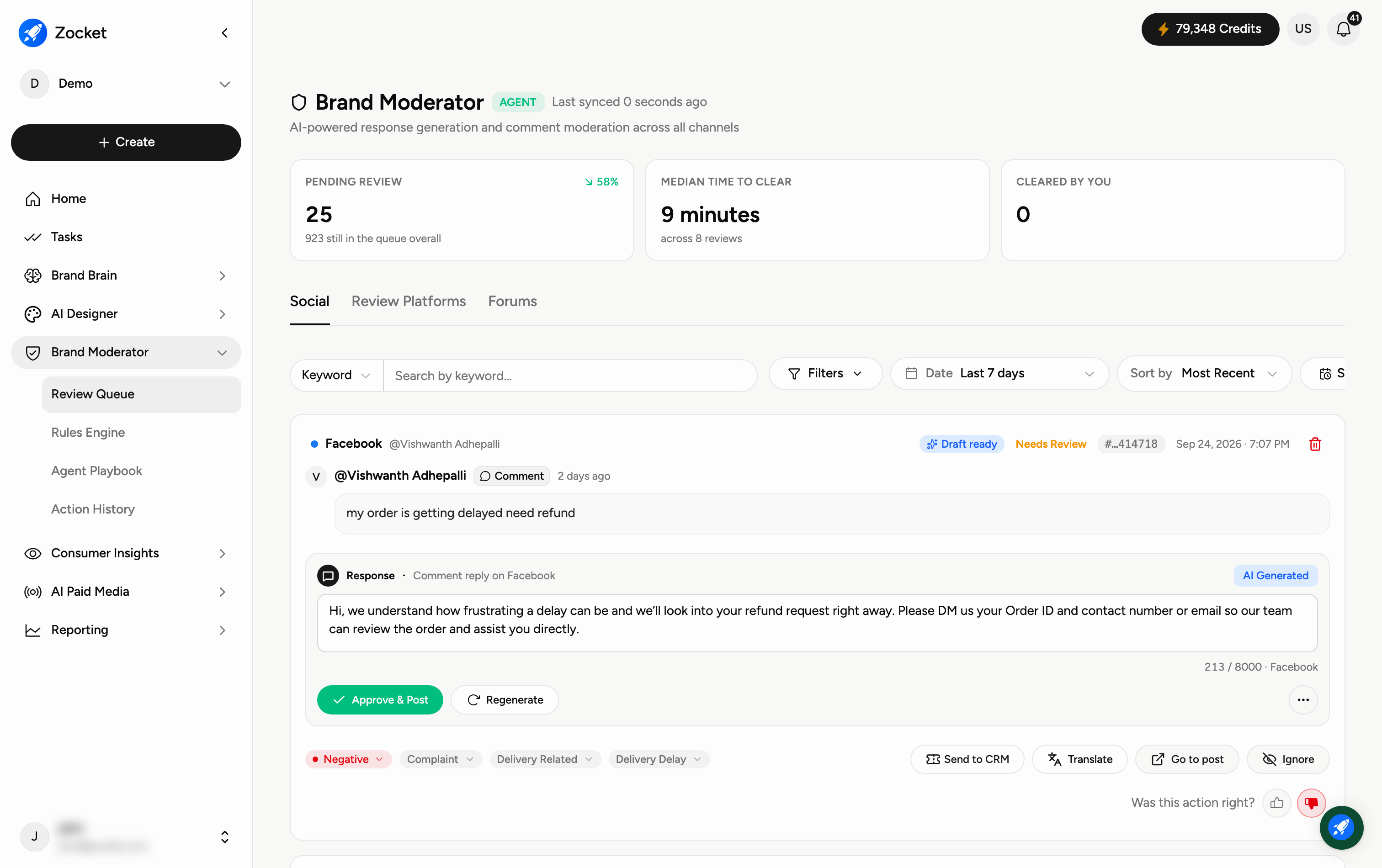
Three tiles across the top tell you where the queue stands:
Pending review — how many items are waiting, with the change on the period and a count of everything still in the queue overall.
Median time to clear — how long an item typically waits before someone deals with it.
Cleared by you — your own contribution over the period.
Beside the module name you'll see an Agent badge and a Last synced time, so you know how fresh the queue is. If a channel still needs setting up, a banner appears at the top with the action to fix it — for example, a prompt to link at least one Facebook page.
Step 2 — Pick the channel type
Three tabs split the queue by where the item came from:
Social — comments and messages on your social posts and ads.
Review Platforms — reviews left on platforms like Google, marketplaces and app stores.
Forums — discussion threads where your brand comes up.
Step 3 — Filter down to what you need
Under the tabs: Keyword search, Filters, a Date range (defaults to the last 7 days), and Sort by (defaults to Most Recent). If the list looks empty, the page tells you how many items are still in the queue overall and offers Clear filters — an empty list almost always means the filters are too narrow, not that there is no work.
Step 4 — Review an item and its AI-drafted reply
Each card shows the channel, the type of item, who wrote it, its priority and status, and the original text — plus the rule that flagged it. Below is the AI Draft reply marked "Awaiting review." Read it, edit if needed, then approve. You can also regenerate it, copy it, or give it a thumbs up or down to improve future drafts.
When to come here
Daily, for the community team. After a launch when comment volume spikes. Whenever the response SLA clock is running.
Frequently Asked Questions
Does it reply automatically?
Only where a rule says so. Anything routed to the Review Queue is drafted and held — nothing is posted until you approve it.
What's the difference between Social, Review Platforms, and Forums?
They're the three kinds of place your brand gets talked about: your own social posts, third-party review sites and stores, and open discussion forums. Each has its own queue so you can work one at a time.
The queue looks empty but I know there's work — why?
Your filters are too narrow. The page shows how many items are in the queue overall; click Clear filters to see them.
Why is there a banner about linking a page?
A channel isn't fully connected yet. Until you finish that setup, items from it won't reach the queue. Use the action in the banner.
What does "Median time to clear" tell me?
How long items typically sit before being handled — the quickest read on whether the queue is keeping up.
How do I make the drafts better over time?
Use the thumbs up and down on each draft and refine your Agent Playbook — the AI learns your preferred tone and responses.