
The Rules Engine decides how incoming items are handled, automatically. You set a condition (keywords or an AI topic) and the action to take, so the right things get auto-answered and the sensitive ones come to you. Open it from Brand Moderator → Rules Engine.
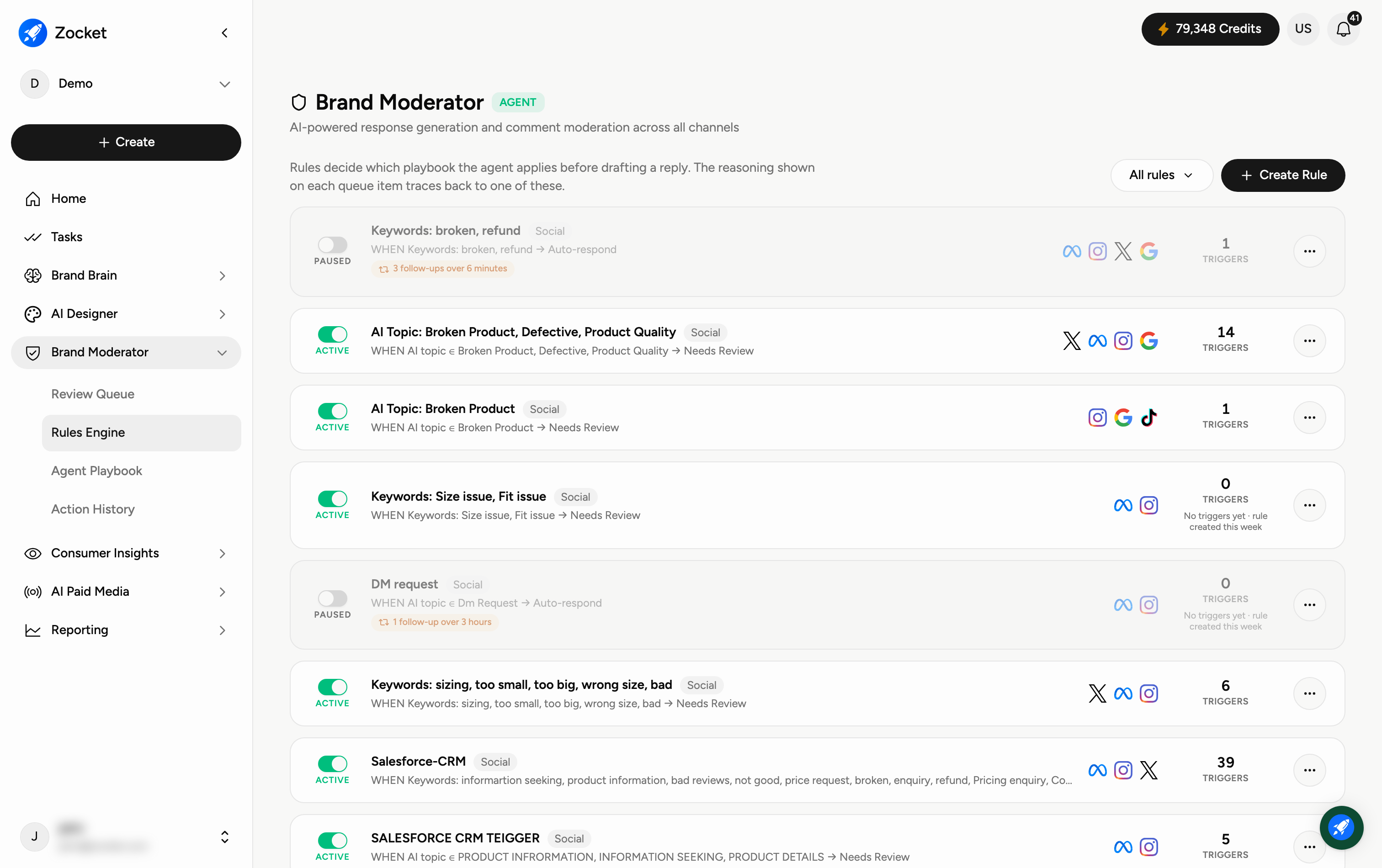
Rules also decide which playbook the agent applies before drafting a reply — the reasoning shown on each queue item traces back to one of these rules, so if a reply reads wrong, the rule that fired is the place to look.
Why you'd use it
The routing brain behind the Review Queue. Rules Engine is where your escalation policy becomes live behaviour: what triggers a rule, and what the agent is then allowed to do. It's how you encode "appreciation must never create a ticket," "delivery complaints escalate to the quality desk," or "anything mentioning a refund is human-only."
Step 1 — Manage and create rules
Use the All Rules dropdown (top-right) to filter the list, and click Create Rule to add a new one.
Step 2 — Read a rule
Each rule row tells the whole story at a glance:
Status — Active or not.
Type — Keywords (trigger on specific words) or AI Topic (trigger on an understood theme).
The logic — WHEN condition, THEN action. For example, "WHEN Keywords: broken, refund → Auto-respond", or "WHEN AI topic is Broken Product or Defective → Needs Review".
Scope — which kind of channel it watches, matching the Review Queue's tabs (for example Social).
Follow-ups — where a rule chases a reply, it says how many follow-ups it sends and over what period.
Triggers — how many times it has fired. A new rule reads "No triggers yet" with when it was created, so you can tell "not working" from "not needed yet".
A toggle to turn it on or off, and a delete icon.
When to come here
During onboarding calibration. When a new complaint pattern emerges (a product recall, a shipping issue). When a client updates their escalation matrix or adds a channel.
Frequently Asked Questions
What's the difference between Keywords and AI Topic rules?
Keywords match exact words (for example "refund"). AI Topic understands meaning — it catches a "broken product" complaint even if those exact words aren't used.
What can the action be?
Typically Auto-respond (reply automatically) or Needs Review (send it to the Review Queue for a human to approve). Use Needs Review for anything sensitive.
Do rules apply to every channel?
Only the channels shown on the rule — you choose which platforms each rule watches.
How do I pause a rule without deleting it?
Flip its toggle off. It stays in the list and you can re-enable it any time.
How does this connect to the Review Queue?
Rules set to Needs Review are exactly what shows up in the Review Queue with an AI-drafted reply awaiting your approval. The reasoning on each queue item names the rule that put it there.
What are follow-ups?
Where a rule is set to chase, it will send more than one message over a set period rather than replying once. The rule row shows how many and over how long.
A reply came out in the wrong tone — where do I fix it?
Check which rule fired (the queue item's reasoning names it), because the rule selects the playbook. Then fix either the rule or the Agent Playbook it points at.