Ratings & Reviews monitors your star ratings, the themes inside your reviews, and how you stand in your category across the places people rate you. Open it from Consumer Insights → Ratings.
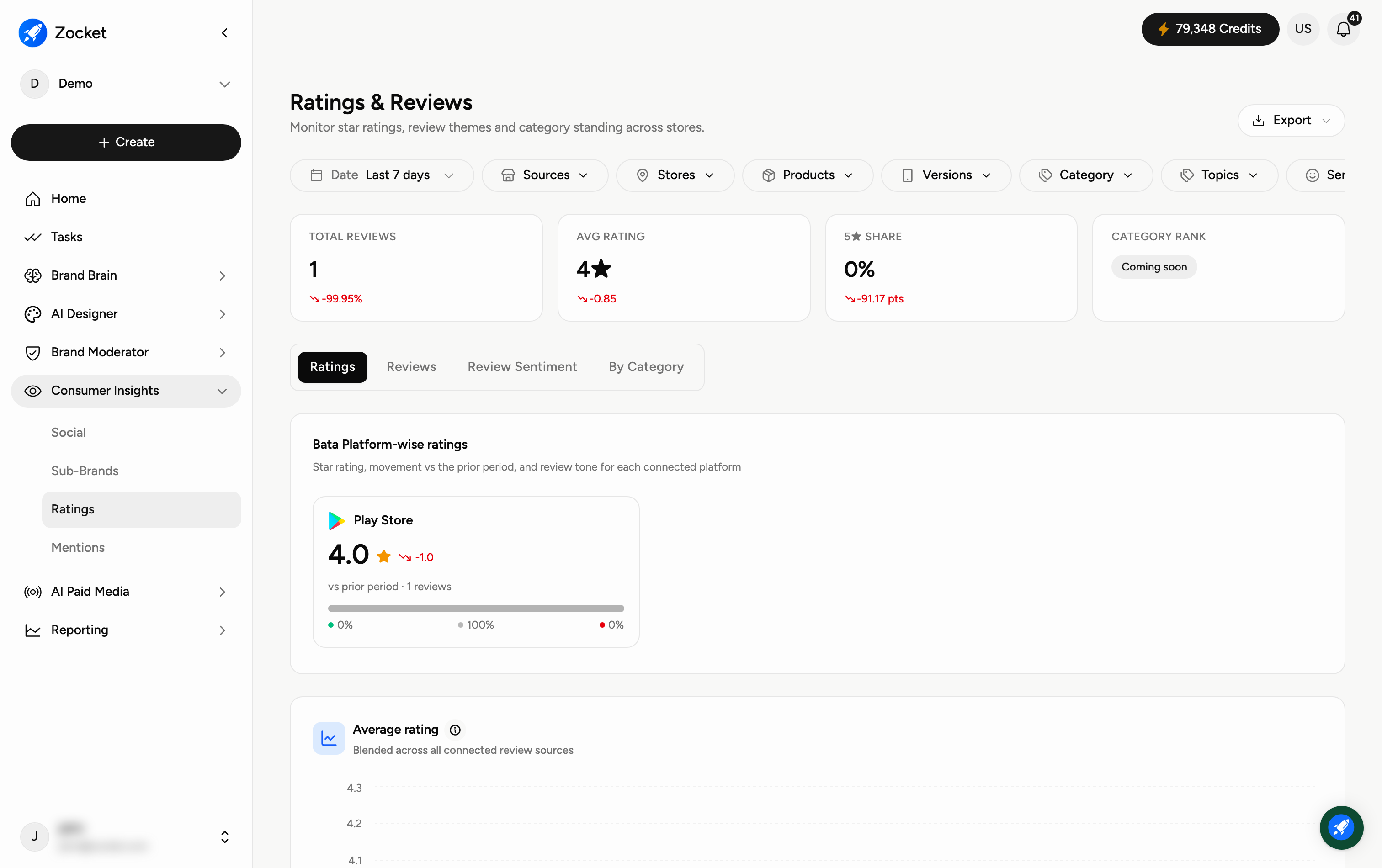
Everything on the page is scoped by the filter bar at the top, and Export downloads whatever you are currently looking at.
Nine controls, and they stack — combine as many as you need:
Date — All Time, Today, Yesterday, Last 7 days, Last 30 days, or a Custom range.
Sources — which connected review platforms to include.
Stores — narrow to specific locations.
Products — narrow to specific products.
Versions — app release, for app-store reviews.
Category — the review theme, for example returns or store experience.
Topics — searchable, once topics are configured for your workspace.
Sentiment — Positive, Neutral or Negative, each showing how many reviews sit in it.
Emotion — how customers feel, not just whether they are happy. See below.
The Emotion filter classifies every review into one of eight feelings, each with a count: Appreciation, Happiness, Feedback, Complaint, Disappointment, Recommendation, Loyalty and Anger.
This is more useful than sentiment on its own, because it separates problems that need different responses. A large negative bucket tells you something is wrong; splitting it into anger and disappointment tells you which reviews need a reply today and which point at a product issue. Stack it with Stores or Sources to find exactly where a feeling is concentrated.
Four tiles summarise the period:
Total reviews — how many reviews came in, and the change on the previous period.
Avg rating — your blended star rating across every connected source, with its movement.
5-star share — the proportion of reviews at five stars.
Category rank — how you place against your category. This one is not available yet and shows as "Coming soon."
The Ratings tab charts your average rating over the period, blended across all connected review sources. Below it, a per-platform breakdown shows the current star rating on each connected platform with its 30-day movement, and calls out where you are strongest and weakest — usually the fastest way to see which channel is dragging the average down.
The Reviews tab groups your sources into cards — for example Google, marketplaces, and app stores. Sources load on demand, so click a card to pull its reviews in. Once loaded you get a table of locations showing the store, its location, the negative percentage, the rating, and the categories the reviews fall into. Expand any row to read the reviews behind it.
Use Sort by and Filters to bring the worst performers to the top, and Alert rule to be told when something crosses a threshold rather than checking manually.
The Review Sentiment tab classifies your reviews by tone, both in aggregate and per platform, so you can see whether a rating drop is broad or confined to one channel.
The By Category tab is where the themes live. It totals complaints and praise, then lists each category — returns, product information, store experience, delivery, payments and so on — with its positive/neutral/negative split, a net percentage, the change on the period, and the volume of reviews behind it.
Filter to Complaints or Praise to focus, and use the Show changed/deleted categories toggle to include categories that have since been altered or removed. A category with a small volume but a sharply negative net is usually worth acting on before a large, stable one.
Can I see how customers feel, not just whether they are positive or negative?
Yes. The Emotion filter splits your reviews into eight feelings — Appreciation, Happiness, Feedback, Complaint, Disappointment, Recommendation, Loyalty and Anger — each with a count, so you can go straight to the angry reviews rather than reading through everything negative.
Why does the page say "Not Enough Data"?
Usually the date range is too narrow for the volume of reviews coming in. Set Date to Last 30 days or All Time and the charts will fill in.
The Topics filter is empty. Why?
Topics have not been configured for your workspace yet, so the list shows "No topics available yet." Every other filter works independently of it.
Which platforms does this cover?
Whichever review sources are connected to your workspace — typically Google or your business listings, marketplaces, and app stores. The per-platform breakdown on the Ratings tab shows exactly which ones are feeding in.
Why does a source say "click to load"?
Review sources load on demand to keep the page fast. Click the card and its reviews are pulled in.
Why is Category rank empty?
It isn't available yet — it shows "Coming soon." Every other tile on the page is live.
What does the negative percentage on a location mean?
The share of that location's reviews that are negative. It's the quickest way to find the specific stores pulling your average down, rather than reading the whole feed.
How is this different from Mentions?
Mentions covers anywhere your brand is talked about across social and the web. Ratings & Reviews is specifically the places people leave a star rating and a review, plus the themes inside those reviews.
Can I be told when a rating drops instead of checking?
Yes — use Alert rule on the Reviews tab to set a threshold and get notified.
Can I get this data out?
Yes — Export at the top of the page downloads the current view for the filters you've set.
Can I see how ratings changed between app versions?
Yes. Use the Versions filter to scope reviews to an app release — the fastest way to tell whether a drop followed a specific build.
How do I narrow reviews down to one store or star rating?
Use the Stores filter in the bar at the top, then the rating and mention-type filters above the list, and Sort by to reorder — for example worst-rated first.
What is Region health on the Reviews tab?
Google reviews rolled up by region, for the period your Date filter is set to. It is the fastest way to see whether a rating problem is national or confined to one part of the country before you start reading individual stores. If it says "No region data available for the current filters", widen the Date range or clear a filter — it is reporting on the slice you have selected, not on nothing.
Why does a source filter appear by itself when I open the Reviews tab?
The Reviews tab scopes itself to your retail review sources — you will see an Active filters chip such as Google Stores (GMB). That is deliberate: the tab is about physical outlets and the stores behind them. Use Clear all if you want the unscoped view, and remember the headline tiles above follow whatever is selected.
