
The Overview is your paid-media command centre — performance across all platforms, with AI-written highlights that tell you what needs attention. Open it from AI Paid Media → Overview.
Why you'd use it
Answers "how are my ads doing right now" across every connected platform, then tells you what to do about it — the page narrows from headline measurement down to the specific signals worth acting on.
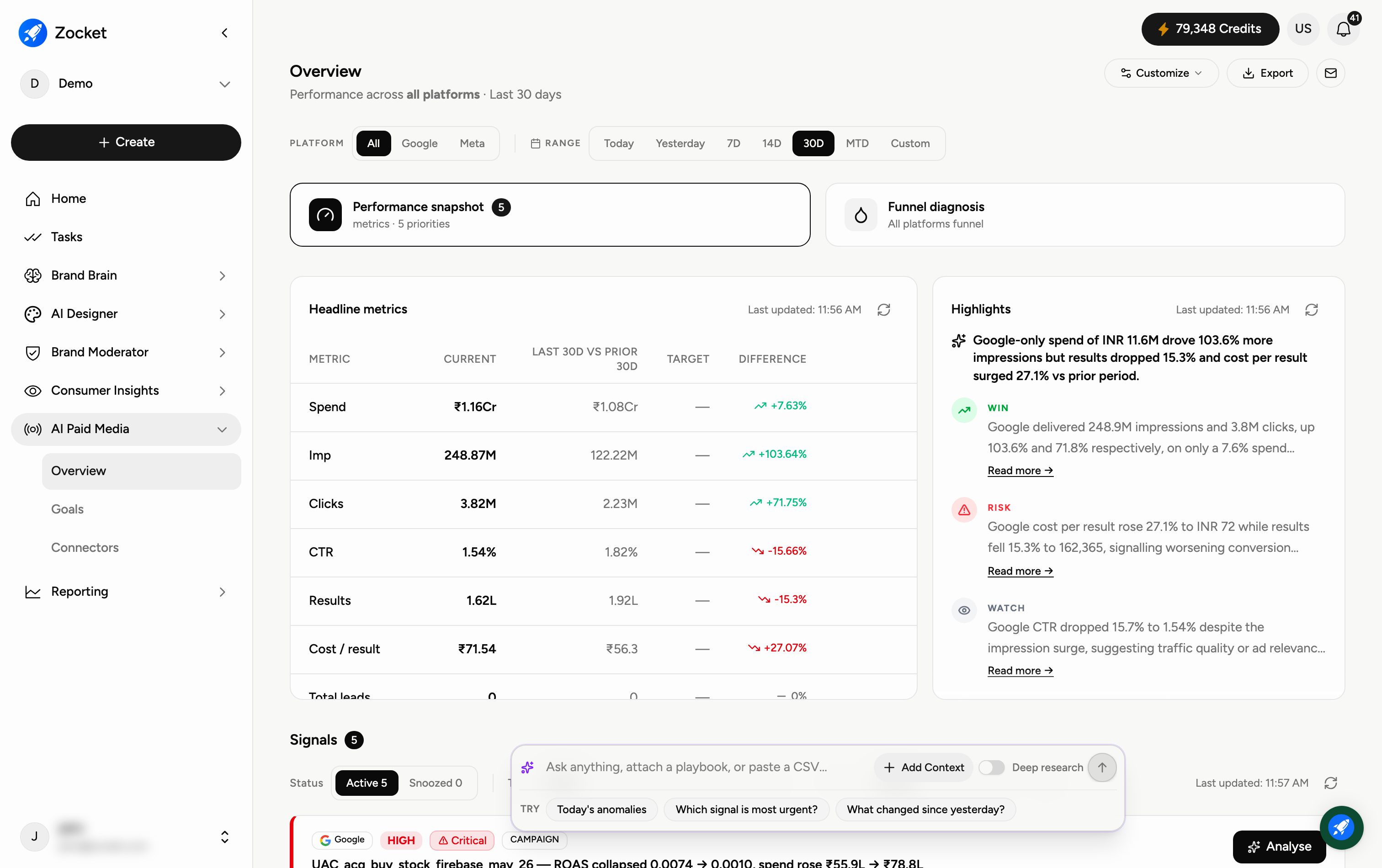
Step 1 — Filter the view
Set Platform (All, Google, Meta) and Range (Today, Yesterday, 7D, 14D, 30D, MTD, or Custom). Use Customize to choose which metrics show and Export to download. You can also switch between the Performance snapshot and Funnel diagnosis views.
Step 2 — Read your headline metrics
The Headline metrics table shows your key numbers — Spend, CTR, Total leads, Cost / lead, Qualified leads, Cost / qualified lead — each with its Current value, Today vs Yesterday, your Target, and the Difference. Green means better, red means worse.
Step 3 — Act on the AI Highlights
The Highlights panel is the AI reading your data for you — a plain-English summary plus tagged insights: WIN (what's working), RISK (what could hurt), and WATCH (keep an eye on). Click Read more for detail. At the bottom, the Ask anything chat lets you interrogate the data (attach a playbook or CSV, and toggle Deep research).
When to come here
First thing every morning. Before any budget decision. Whenever someone asks "how are the ads doing?"
Frequently Asked Questions
Why is everything showing zero?
If no ad account is connected (or campaigns are paused), there's no data. Connect your Google and Meta accounts in Connectors — the Highlights panel will even flag "no account assigned."
What's the difference between Performance snapshot and Funnel diagnosis?
Performance snapshot shows headline metrics; Funnel diagnosis analyses your funnel stage by stage to find where you're losing people.
What do WIN, RISK and WATCH mean?
They're AI priority tags: WIN is good news, RISK needs action, WATCH means monitor. They surface the few things worth your attention.
Can I ask the AI about my performance?
Yes — use the Ask anything box (for example, "which signal is most urgent?" or "what changed since yesterday?"). Turn on Deep research for a more thorough answer.
Can I export the numbers?
Yes — use Export (top-right) for the selected platform and date range.