
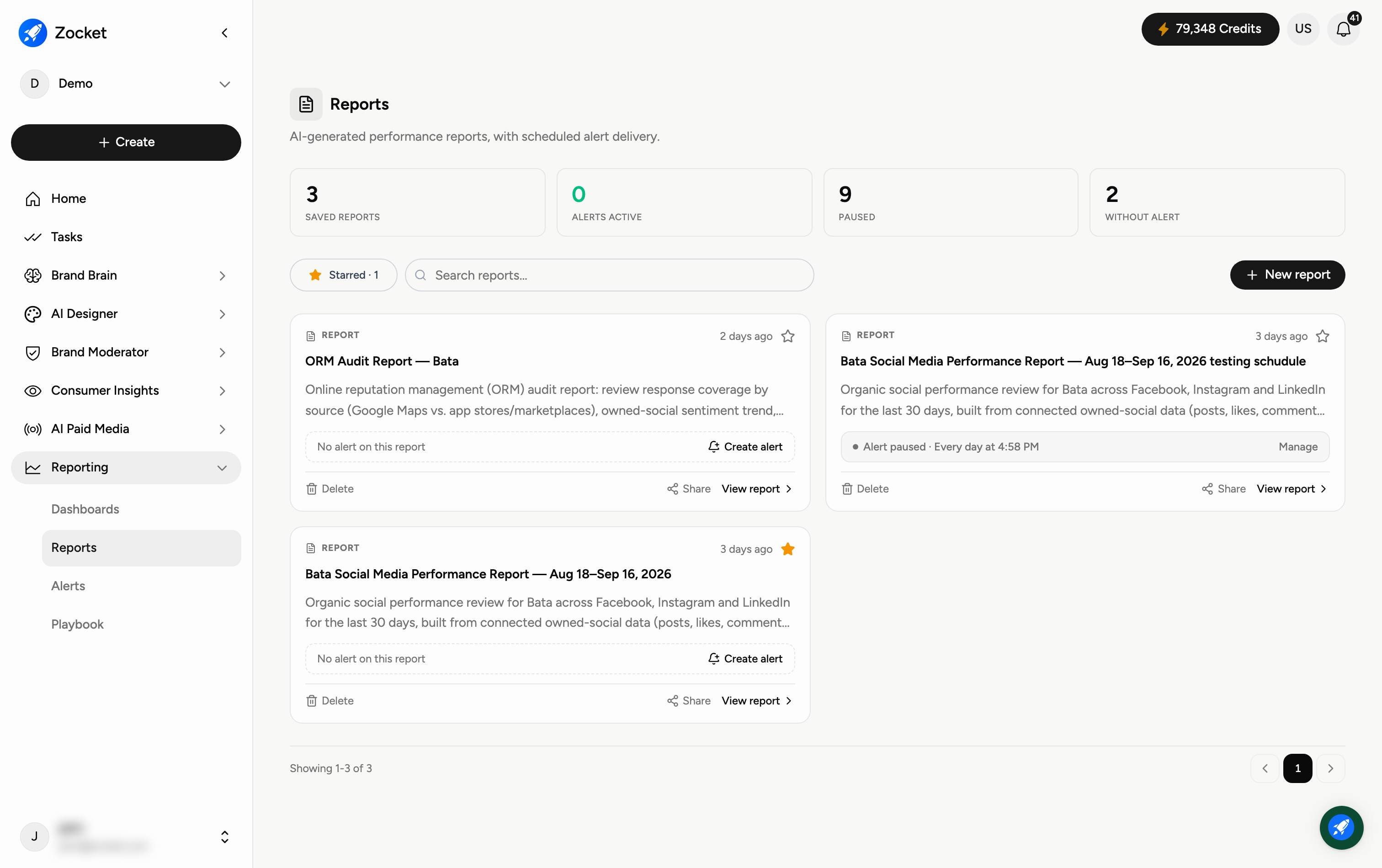
Reports are AI-generated performance write-ups — for example, a campaign-performance dashboard for a Google Ads account over the last 30 days. Each report is saved to your workspace so you can revisit it, share it with your team, and optionally attach a scheduled alert that emails a fresh copy on a cadence you choose. Find them under Reporting → Reports.
Why you'd use it
Turns a one-off analysis into a standing deliverable. You generate a report from your connected accounts. It's saved, and then you attach an alert so it's delivered on a schedule. This is the answer to "we rebuild the same performance deck every month."
Reading the summary tiles
Across the top of the Reports page, four tiles give you an at-a-glance status:
Saved reports — how many reports exist in your workspace.
Alerts active — reports currently delivering on a schedule.
Paused — reports whose scheduled delivery is paused.
Without alert — saved reports that have no scheduled delivery attached yet.
Step 1 — Create a new report
Click + New report in the top right. Describe the report you want in plain language (the account, the date range, the metrics and any chart preferences) and Zocket generates it from your connected sources.
Step 2 — Find a report
Use the search box to find a report by name, or the Starred filter to jump to the ones you've pinned with the star icon. Each report card shows its title, a short description, and when it was last updated.
Step 3 — Use the actions on a report card
Every report card has a row of actions:
Create alert — schedule this report to be delivered automatically (daily or weekly, by email). A report showing "No alert on this report" has no schedule yet.
Share — send the report to teammates.
View report — open the full report to read the charts and detail.
Delete — remove the report from your workspace.
Step 4 — Turn a report into a scheduled delivery
Click Create alert on any report to put it on a schedule. The alert then appears under Reporting → Alerts, where you can manage its cadence, channel and recipients.
When to come here
Setting up recurring client or leadership reporting. Auditing which reports are actually being delivered. Replacing a manual monthly performance deck.
Frequently Asked Questions
What's the difference between a Report and an Alert?
A report is the AI-generated write-up itself. An alert is the schedule that delivers that report automatically (for example, daily by email). You create an alert from a report using Create alert.
What does "No alert on this report" mean?
The report is saved but isn't on a delivery schedule yet. Click Create alert to add one — it will then be counted under "Alerts active".
Can I share a report with someone who doesn't build it?
Yes. Use the Share action on the report card to send it to a teammate.
How do I quickly find one report among many?
Use the search box at the top of the Reports page, or star the reports you use most and switch on the Starred filter.
Is deleting a report reversible?
Deleting removes the report from your workspace, so only delete reports you're sure you no longer need. If it's just clutter, consider leaving it unstarred instead.
Where do the numbers in a report come from?
From your connected sources (for example, the ad accounts connected under AI Paid Media → Connectors). The report is generated against that live data for the date range you specify.
Can I compare us against competitors in a report?
Yes. A competitor benchmark is built from the same template as your own cut, so the measures, platform set and filters cannot drift apart between the two sides. If your competitor roster is empty it will say so rather than report that your rivals have no reviews.
How granular can the review data get?
Geography returns region, state, city and store in a single fetch, and each tier is folded up from the tier below — so a regional number is provably the same reviews as the stores inside it. Slices are shown with the number of reviews behind them, not just a percentage, so you can see when a theme is too small to act on.
Can I share a report with someone outside the builder?
Yes. Share opens a dialog with three ways in: your organisation's members already have access, Invite by email adds someone outside the organisation, and a public link lets anyone holding it view the report at the access level you choose. You can copy or revoke that link from the same place.
Why does it ask me for a time period?
Because the period changes the answer, and a default would hide that. You are asked once and the chosen window is what gets reported.