
Alerts are scheduled deliveries of your reports across your channels. Instead of opening Zocket to check a report, you set an alert and Zocket sends the report to you and your teammates on a cadence — for example, a "Campaign Performance Analysis" delivered daily by email. Alerts are how a saved report turns into something that reaches your inbox automatically. Find them under Reporting → Alerts.
Why you'd use it
Gets the analysis in front of a human without anyone logging in. An alert is a saved report plus a schedule, a channel, and recipients, and it keeps a delivery record.
Reading the summary tiles
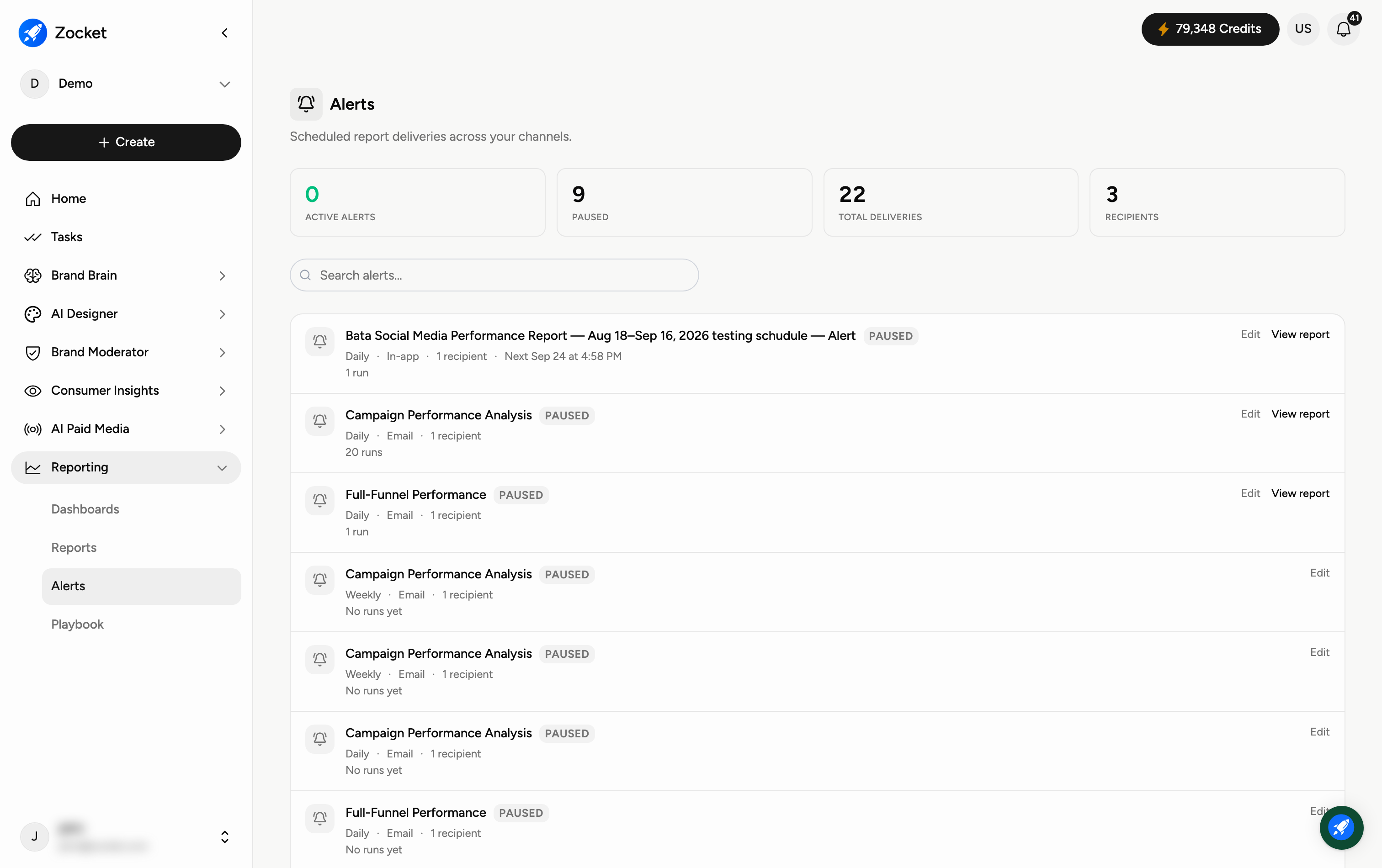
The four tiles at the top summarise your alert activity:
Active alerts — alerts currently running on schedule.
Paused — alerts that are set up but not currently delivering.
Total deliveries — how many times your alerts have been sent.
Recipients — how many people receive your alerts.
Step 1 — Find an alert
Each alert in the list shows its name, a status badge (Active or Paused), and its key settings at a glance. The list is paged, with a count of how many you are looking at.
Step 2 — Read an alert's settings
Each alert row tells you exactly how and when it delivers:
Cadence — how often it sends (for example Daily or Weekly).
Channel — where it's delivered (for example Email).
Recipients — how many people receive it.
Runs — how many times it has already been delivered, or "No runs yet" for a brand-new alert.
Step 3 — Edit or pause an alert
Use Edit on any alert to change its cadence, channel or recipients, or to pause and resume delivery. A paused alert stops sending but keeps all its settings, so you can switch it back on any time. Pausing is the safe way to stop deliveries temporarily without losing the setup.
Step 4 — Open the underlying report
Click View report on an alert to open the report it delivers, so you can check exactly what recipients are receiving.
Step 5 — Create a new alert
New alerts are created from a report: go to Reporting → Reports, find the report you want delivered, and click Create alert. Choose the cadence, channel and recipients, and the new alert then appears on the Alerts page.
When to come here
After building a report anyone needs to see on a cadence. When auditing whether stakeholders are actually receiving what you promised in the SOW.
Frequently Asked Questions
How do I create an alert?
From a report. Go to Reporting → Reports, click Create alert on the report you want delivered, then set the cadence, channel and recipients.
What's the difference between Paused and Active?
Active alerts are delivering on schedule; paused alerts keep all their settings but aren't sending. Use Edit to switch between them.
What does "No runs yet" mean?
The alert is set up but hasn't delivered yet — usually because it's new or paused. Once it sends, the run count starts climbing.
How often can an alert deliver?
Common cadences are Daily and Weekly. You choose the cadence when you create the alert and can change it later with Edit.
How do I stop an alert without deleting it?
Pause it via Edit. It stops delivering but keeps its settings, so you can resume any time.
Can I see what an alert actually sends?
Yes — click View report on the alert to open the exact report recipients receive.