
Almost everything you make in Zocket happens through a chat with an AI agent. You type what you want in plain language — "make a Diwali sale banner for our running shoes" — and the agent replies with drafts you can refine, again by chatting. Every one of these conversations is saved, so you can reopen it later, keep iterating, or reuse the context. The Chats page is where all those conversations live.
Step 1 — Start a chat from Home
On the Home page, use the big prompt box in the middle to describe what you want to create, then press send. Use Add Context to attach a brand, product, image, or file so the agent has what it needs. The quick-start cards below (for example Image Ads, Video Ads) jump straight into a chat for that type of asset.
Step 2 — Chat back and forth to refine
The agent responds with drafts. Reply in the same conversation to adjust anything — change the copy, swap colours, try another concept, resize. Each turn builds on the last, so you don't have to start over.
Step 3 — Reopen past chats
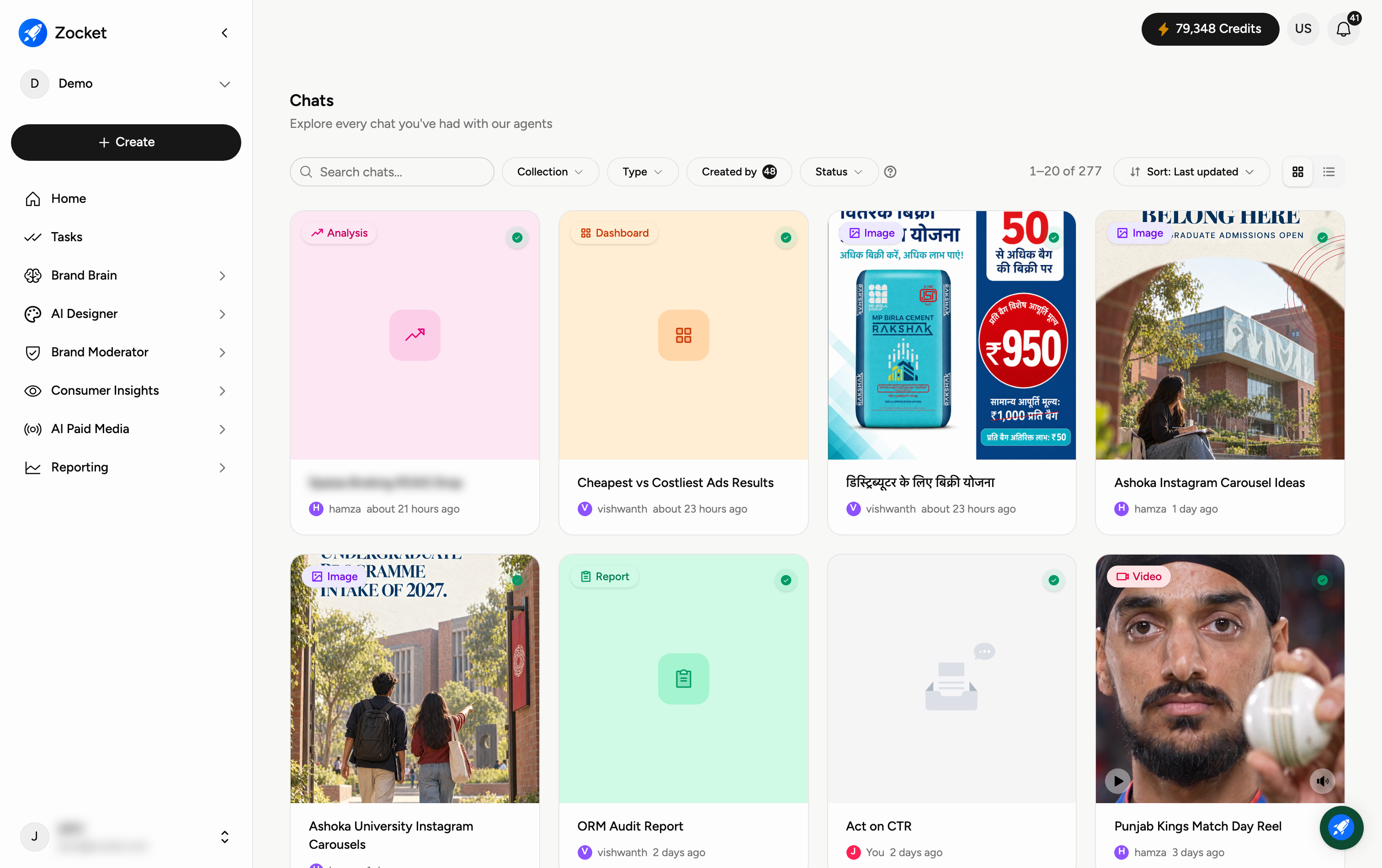
Recent conversations appear under Recent Chats in the left sidebar. Click See All to open the full Chats page, where every conversation you've had with an agent is listed as a card showing its title, who created it, and when.
Step 4 — Find a specific chat
The Chats page filters across everything you have: Collection, Type (image, analysis and so on), Created by, and Status, plus Sort to reorder — most usefully by last updated. The list is paged and shows how many conversations there are in total. Each card carries the conversation's type, who created it, and when it was last touched. Click any card to reopen that chat exactly where you left off.
Frequently Asked Questions
Do I need to know the "right" app to start?
No. You can just describe what you want on Home and the agent routes it. The quick-start cards and the Apps library (AI Designer → Apps) are shortcuts, not requirements.
Are my conversations saved automatically?
Yes. Every chat is saved and appears under Recent Chats and on the Chats page — nothing to save manually.
Can I pick up an old conversation later?
Yes. Open it from Recent Chats or the Chats page and keep chatting; the agent retains the context of that conversation.
How do I give the agent my brand or a reference image?
Use Add Context in the composer to attach a brand, product, file, or link before you send your prompt.
What's the difference between the Chats page and Recent Chats?
Recent Chats in the sidebar is a short list of your latest conversations. The Chats page (See All) is the full, filterable history of every conversation in the workspace.
Can I see only my own chats, or only one kind?
Yes — use Created by to narrow to a person, and Type to narrow to a kind of work such as image or analysis.
Why do some chat cards show a placeholder image?
The card thumbnail reflects the asset produced in that chat; conversations that are text-only or still in progress show a generic placeholder.