
Image Ad Creator makes stunning static ads for your products, brands, or services. Open it from AI Designer → Apps → Image Ad Creator. You fill in a short brief, and the agent generates a set of options you can then refine in chat.
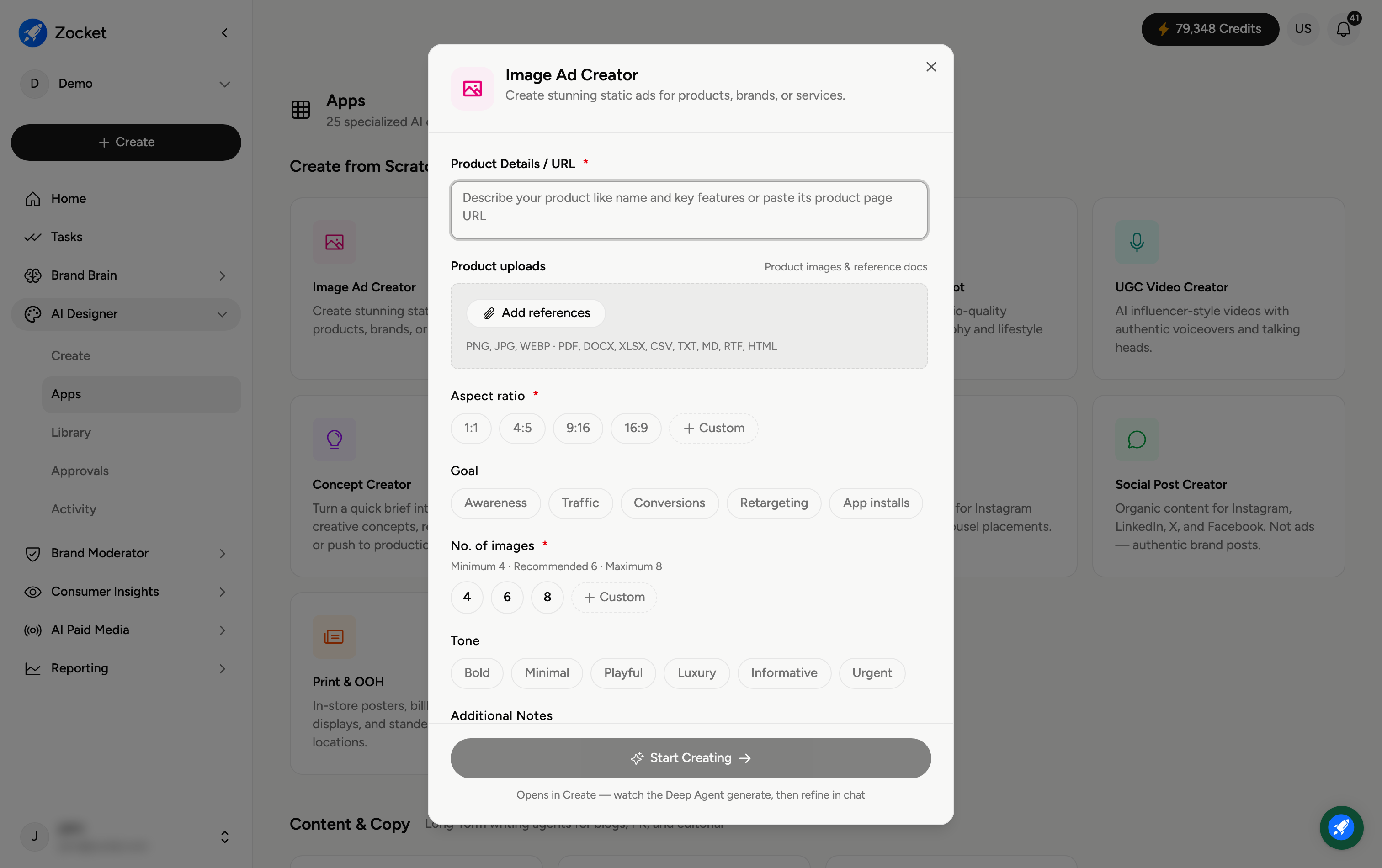
Step 1 — Describe your product
In Product Details / URL (required), describe your product — its name and key features — or simply paste the product page URL and let Zocket read it. Under Product uploads, click Add references to attach product images or documents for a more accurate result (PNG, JPG, WEBP, PDF, DOCX, XLSX, CSV, TXT, MD, RTF, HTML).
Step 2 — Set your options
Tell the agent what you need:
Aspect ratio (required) — 1:1, 4:5, 9:16, 16:9, or Custom. Pick the shape for where the ad will run (for example, 9:16 for Stories).
Goal — Awareness, Traffic, Conversions, Retargeting, or App installs, so the messaging fits the objective.
No. of images (required) — 4, 6, or 8 (minimum 4, recommended 6, maximum 8), or set a Custom number.
Tone — Bold, Minimal, Playful, Luxury, Informative, or Urgent.
Step 3 — Start creating
Click Start Creating. The brief opens in Create, where you watch the agent generate your ads, then refine them in chat — ask for changes in plain English until they're right. Finished creatives are saved to your Library.
Frequently Asked Questions
Do I have to write a description, or can I just paste a link?
Either works. Pasting your product page URL lets Zocket pull the details automatically; a written description gives you more control over what's emphasised.
Which aspect ratio should I choose?
Match it to the placement: 1:1 for feed posts, 4:5 for Instagram feed, 9:16 for Stories and Reels, 16:9 for landscape or web. Use Custom for a specific size.
How many images should I request?
Six is recommended — enough variety to choose from without waiting for extra generations. You can do as few as 4 or as many as 8.
What do references do?
They ground the AI in your real product and brand, so the ads look accurate. Add clear product photos or a brand or spec doc for the best results.
Can I change the result after it generates?
Yes — after Start Creating, you refine in chat: ask for different text, colours, layouts, or backgrounds until you're happy.
Where do the finished ads go?
They're saved automatically to your Library (AI Designer → Library), where you can reuse or download them.