
The Signals page is the full, searchable feed of everything Brand Brain has found about your brand and category. Findings are organised into layers (themes) and sources, and sorted so the most important surface first. Open it from Brand Brain → Signals.
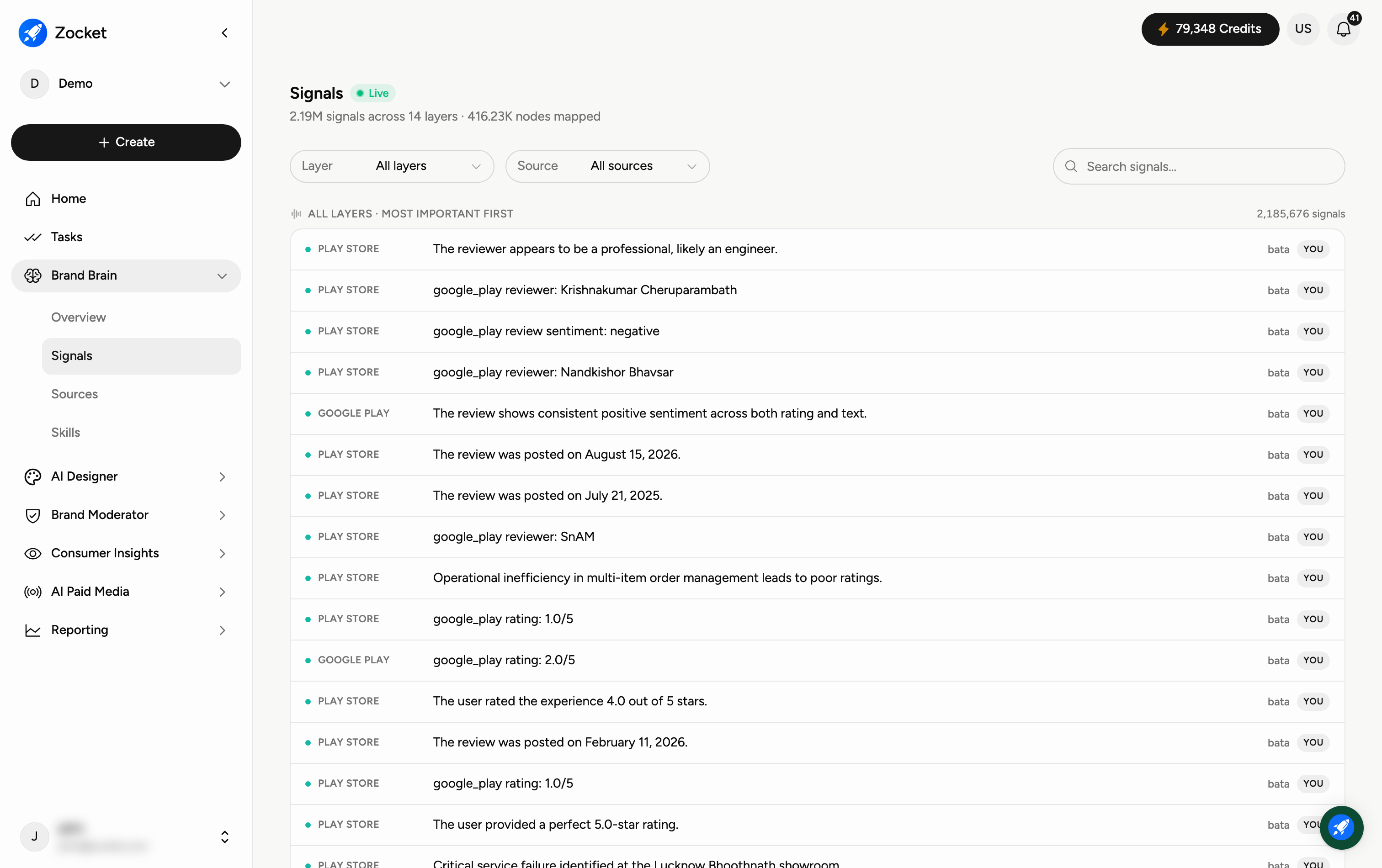
Step 1 — Filter and search signals
The header tells you the scale — the total number of signals, how many layers they span, and how many nodes have been mapped in the graph behind them. Use the controls to focus on what you need:
Layer — narrow to one theme (such as Store Network, Corporate, or Pricing).
Source — narrow to one source (such as a marketplace, filing, or social platform).
Search signals… — type a keyword to jump to specific findings.
By default the feed shows All layers · most important first, with the total count on the right.
Step 2 — Browse the signal feed
Each row is a single finding. Reading left to right you get: the layer tag showing where it fits, the finding itself in plain English, and the brand it's about — your own brand is marked YOU. Scroll to read more; the most important signals are at the top.
Frequently Asked Questions
What's a "layer"?
A layer is a theme Brand Brain groups findings under (store network, pricing, corporate strategy, and so on). Filtering by layer lets you read everything on one topic at once.
How do I find signals from one particular source?
Use the Source dropdown to show only findings from that source, or combine it with a Layer filter and the search box to get very specific.
What does "most important first" mean?
Signals are ranked so the most significant or unusual findings appear at the top, rather than simply the newest.
What does the YOU tag mean?
It marks findings about your own brand, so you can quickly tell them apart from competitor signals.
Are new signals added automatically?
Yes — the page is Live, so new findings appear as Brand Brain keeps tracking. See the Overview guide for the live summary and the Sources guide for where signals come from.