
Banner & Email generates display banners, email headers, HTML email templates, and push notifications — all sharing one product, palette, and message, so a whole multi-channel set stays consistent. Open it from AI Designer → Apps → Banner & Email.
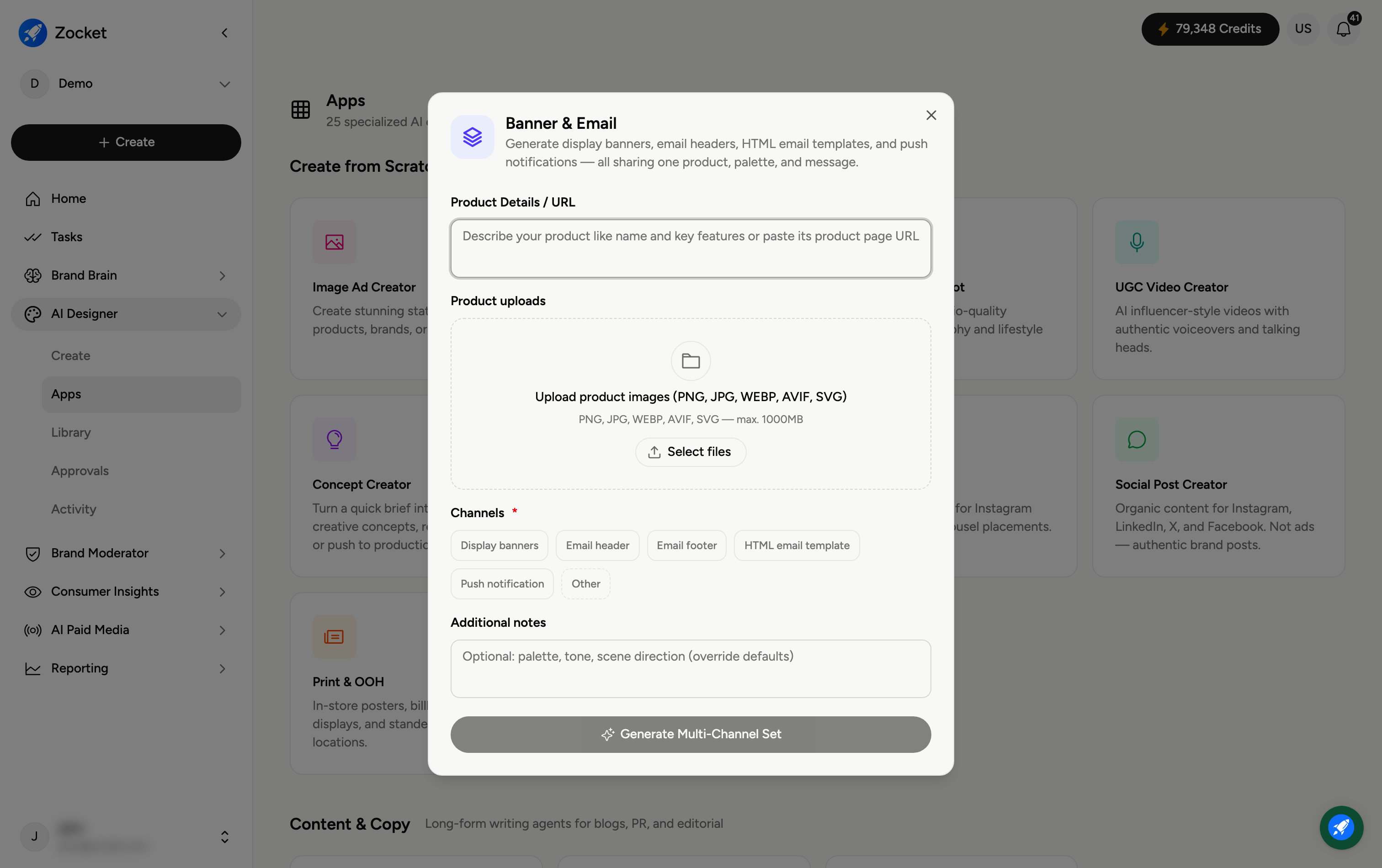
Step 1 — Describe your product and pick channels
Enter Product Details / URL (required) and optionally Upload product images. Then tick the Channels (required) you need — Display banners, Email header, Email footer, HTML email template, Push notification, or Other. Pick several and you get a coordinated set at once.
Step 2 — Add notes and generate
Use Additional notes for anything specific — palette, tone, or scene direction (this overrides the defaults). Then click Generate Multi-Channel Set. It opens in Create, where you refine in chat; the assets are saved to your Library.
Frequently Asked Questions
What's the advantage of generating channels together?
Everything shares one product, palette, and message, so your banner, email, and push all look and sound like the same campaign — no manual matching.
What's an "HTML email template" compared with an "email header"?
The header is the top banner image of an email; the HTML email template is a fuller coded email layout you can drop into your email tool.
Can I do just one channel?
Yes — select a single channel if that's all you need. The multi-channel option is there when you want a matched set.
How do I control the look?
Use Additional notes to set palette, tone, or scene direction; otherwise it uses your Brand DNA defaults.
Where do the assets go?
To your Library (AI Designer → Library) for reuse or download.