
Image Resizer resizes images for any platform — upload or paste a URL and pick your dimensions. Ideal for adapting one creative to every placement. Open it from AI Designer → Apps → Image Resizer (also on the Create hub under Featured Tools).
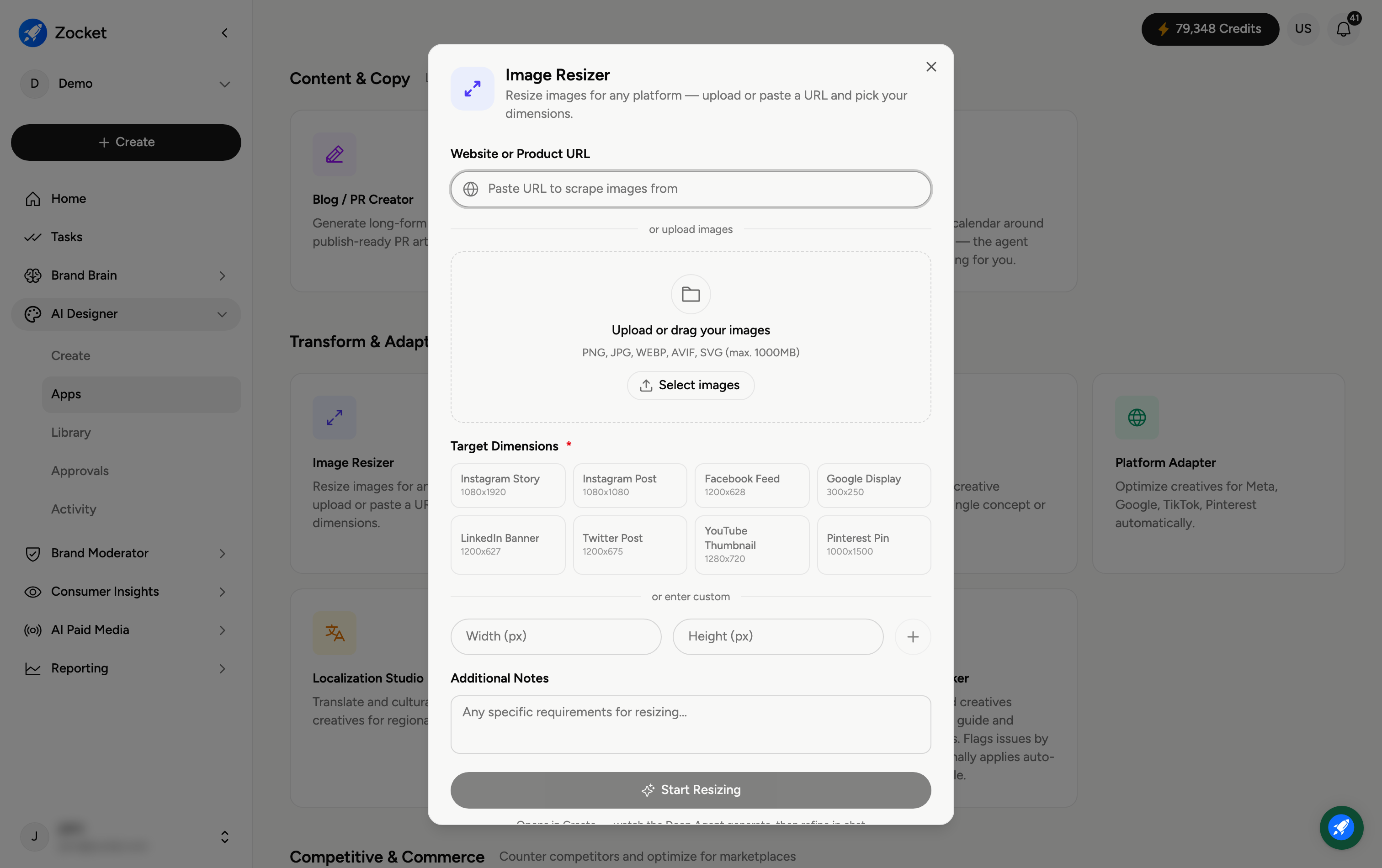
Step 1 — Add your image
Two ways to bring in images:
Website or Product URL — paste a URL and Zocket pulls the images from it.
Upload or drag your images — click Select images or drop files in (PNG, JPG, WEBP, AVIF, SVG).
Step 2 — Pick target dimensions
Choose a Target Dimension (required). Use a preset for common placements — Instagram Story (1080x1920), Instagram Post (1080x1080), Facebook Feed (1200x628), Google Display (300x250), LinkedIn Banner (1200x627), Twitter Post (1200x675), YouTube Thumbnail (1280x720), Pinterest Pin (1000x1500) — or enter a custom Width and Height in pixels.
Step 3 — Resize
Add any Additional Notes, then resize. The reworked images are produced and saved to your Library.
Frequently Asked Questions
How is this different from Image Rescaler?
Image Resizer intelligently adapts a creative to new dimensions, recomposing for the aspect ratio. Image Rescaler only changes the resolution and canvas — it scales pixels and extends the canvas without recomposing the artwork.
Can I resize to several sizes at once?
Pick the presets you need; each target produces its own correctly sized version so you can cover multiple placements.
Do I need to upload, or can I use a URL?
Either — paste a product or website URL to pull images automatically, or upload and drag your own files.
What if my exact size isn't a preset?
Use enter custom and type the Width and Height in pixels.
Where do the resized images go?
To your Library (AI Designer → Library) for download or reuse.