
Image Rescaler rescales images to exact dimensions while preserving the original artwork — it doesn't regenerate or recompose; it only extends the canvas and scales the pixels. Open it from AI Designer → Apps → Image Rescaler.
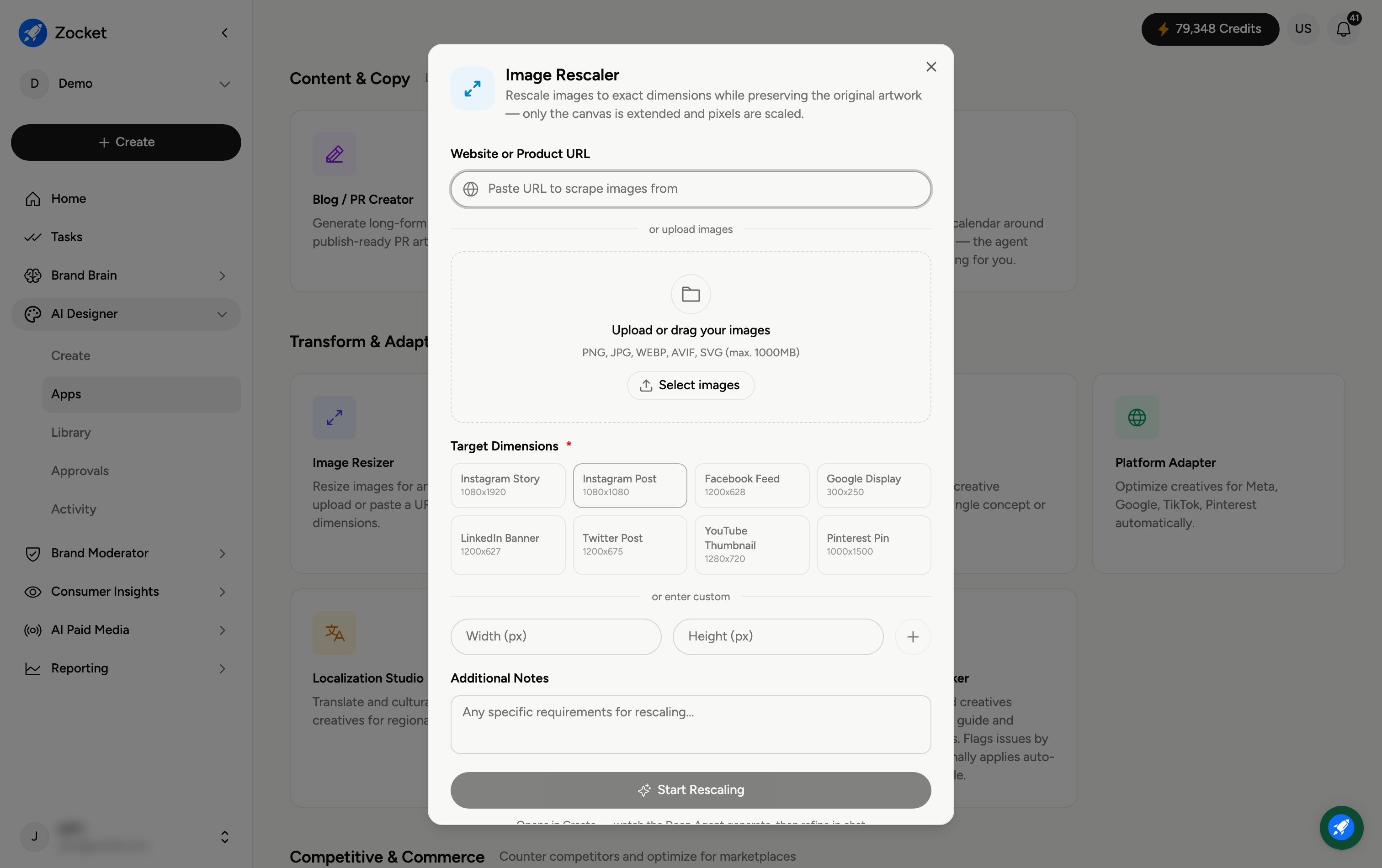
Step 1 — Add your image
Paste a Website or Product URL to pull images from, or Upload / drag your images (PNG, JPG, WEBP, AVIF, SVG).
Step 2 — Set exact target dimensions
Pick a Target Dimension (required) — a preset (Instagram Story, Instagram Post, Facebook Feed, Google Display, LinkedIn Banner, Twitter Post, YouTube Thumbnail, Pinterest Pin) or a custom Width and Height in pixels. The artwork is preserved; the canvas is extended and the pixels scaled to hit that exact size.
Step 3 — Rescale
Add any Additional Notes and rescale. The output is saved to your Library.
Frequently Asked Questions
How is this different from Image Resizer?
This is the key difference: Image Rescaler keeps your exact original artwork — it just scales pixels and extends the canvas to the new size. Image Resizer intelligently recomposes the creative for a new aspect ratio. Use Rescaler when you must not change the design; use Resizer when you want it re-laid-out for the new shape.
Will it distort my image?
No — it preserves the original artwork. When the aspect ratio differs, it extends the canvas rather than stretching the design.
Preset or custom size?
Use a preset for standard placements, or enter a custom Width and Height for an exact spec.
Can I pull an image from a URL?
Yes — paste the URL and it pulls the image; or upload your own file.
Where does the output go?
To your Library (AI Designer → Library).