
Variant Generator turns one master creative into a coordinated batch of variations — it varies only the dimension you choose while keeping the logo, product, layout, and CTA pixel-consistent. Useful for A/B testing. Open it from AI Designer → Apps → Variant Generator.
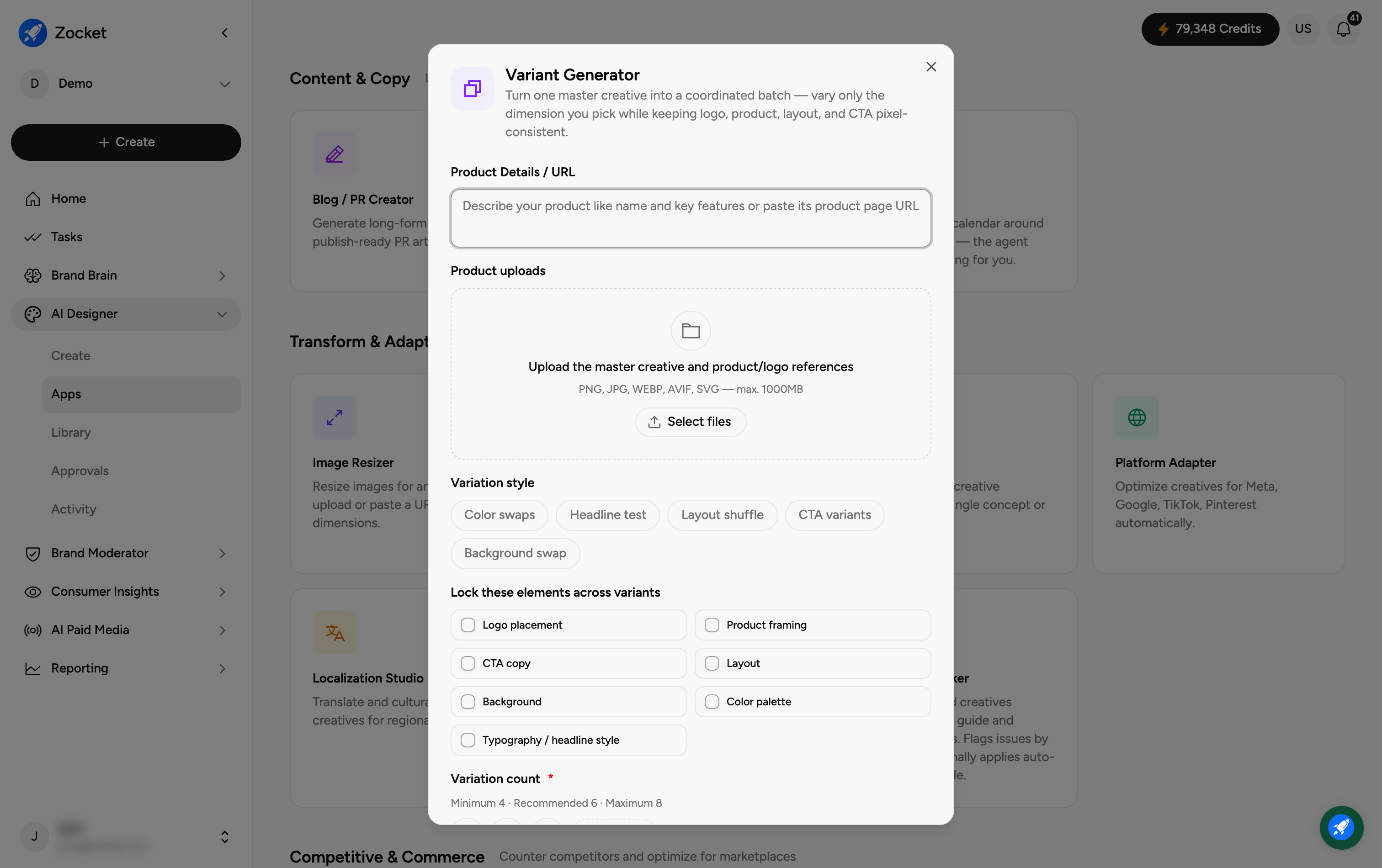
Step 1 — Provide your master and pick what to vary
Enter Product Details / URL (required) and upload the master creative plus product and logo references. Then choose a Variation style — the one thing that changes across variants: Color swaps, Headline test, Layout shuffle, CTA variants, or Background swap.
Step 2 — Lock what shouldn't change, and set the count
Under Lock these elements across variants, tick anything that must stay identical — Logo placement, Product framing, CTA copy, Layout, Background, Color palette, or Typography / headline style. Then set the Variation count (required) — 4, 6, or 8 (minimum 4, recommended 6, maximum 8).
Step 3 — Generate variants
Add Additional notes if needed (for example, "keep the CTA button exactly 'Join Today'"), then click Generate Variants. It opens in Create, where you refine in chat; the batch is saved to your Library.
Frequently Asked Questions
What's the point of locking elements?
It guarantees a clean test — only the variable you're testing (say, the headline) changes, while everything you lock (logo, layout, CTA) stays pixel-identical across every variant.
How is this different from Concept Creator?
Variant Generator works from an existing master creative and produces controlled variations of it. Concept Creator explores brand-new directions from scratch.
What variation styles can I test?
Colour, headline, layout, CTA, or background — pick the one dimension you want to compare across the batch.
How many variants should I make?
Six is recommended for a solid test; use 4 for a quick check or 8 for wider coverage.
Where do the variants go?
To your Library (AI Designer → Library) for review and download.