
Platform Adapter optimises a creative for Meta, Google, TikTok, Pinterest and more, automatically. It takes one creative and natively re-lays it out for each platform: every version is re-composed (not just resized) to fit that destination's safe zones. Open it from AI Designer → Apps → Platform Adapter.
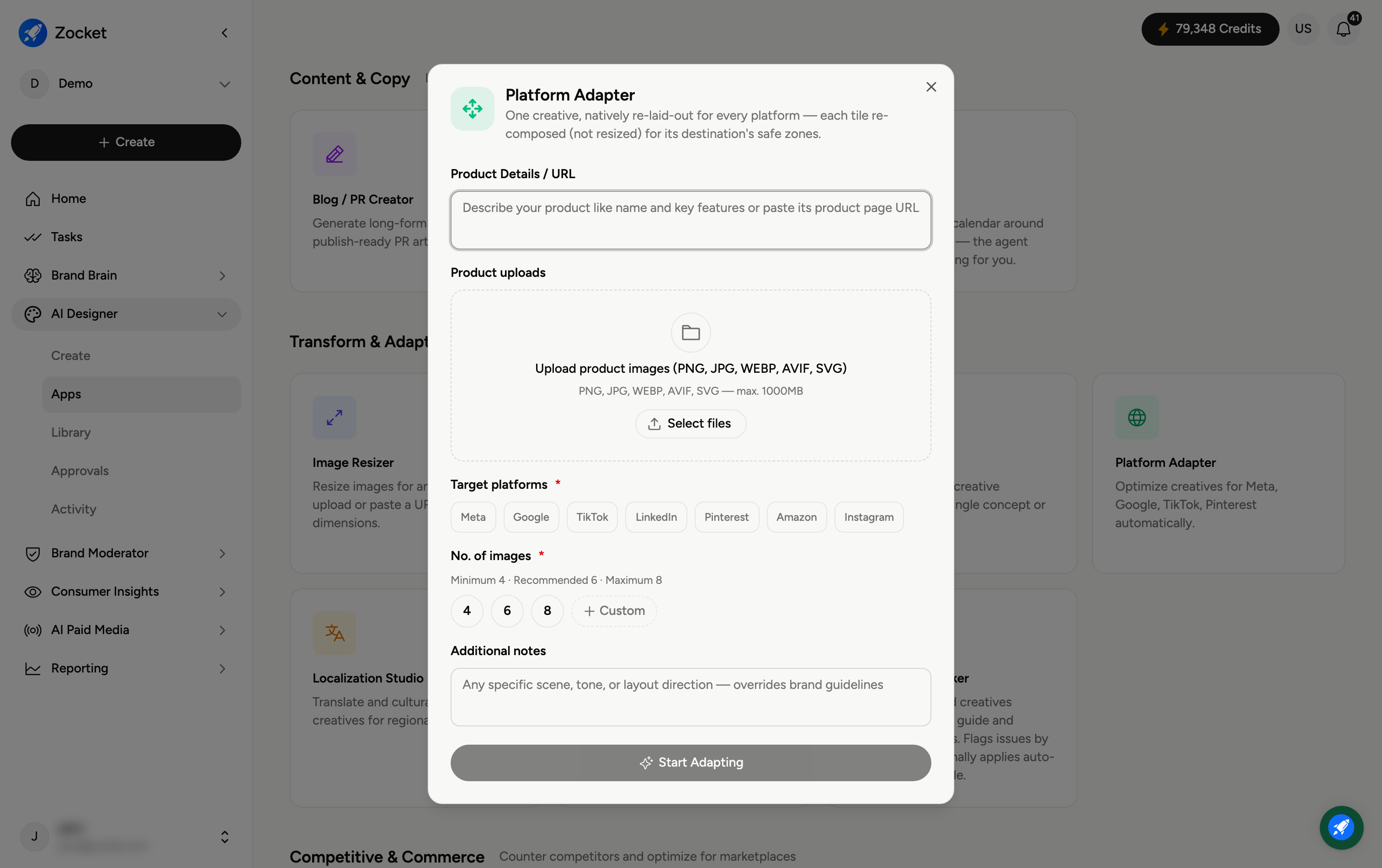
Step 1 — Provide your product and pick platforms
Enter Product Details / URL (required) and Upload product images. Then choose your Target platforms (required) — Meta, Google, TikTok, LinkedIn, Pinterest, Amazon, or Instagram. Each selected platform gets its own correctly composed version.
Step 2 — Set count and notes
Set No. of images (required) — 4, 6, or 8 — and add Additional notes for any specific scene, tone, or layout direction (this overrides brand defaults).
Step 3 — Start adapting
Click Start Adapting. It opens in Create, where you refine in chat; the platform-ready versions are saved to your Library.
Frequently Asked Questions
How is this different from Image Resizer?
Platform Adapter re-composes the creative for each platform's safe zones (where text and logos must sit), producing a native layout per channel. Image Resizer changes dimensions; it doesn't re-think the layout per platform.
What's a "safe zone"?
The area of a placement where key elements won't be cropped or covered by platform UI (for example Story captions or profile icons). Adapter keeps your important content inside it.
Can I adapt to several platforms at once?
Yes — select all the platforms you need and it produces a native version for each in one run.
Do I start from an existing creative?
Provide the product details and upload the creative and product images; the adapter builds the platform-native layouts from them.
Where do the adapted versions go?
To your Library (AI Designer → Library) for download.