
Background Studio removes, replaces, or enhances the background of a product photo — while the product itself stays pixel-identical (same colour, shape, label, and reflections). Ideal for studio, lifestyle, or seasonal settings. Open it from AI Designer → Apps → Background Studio.
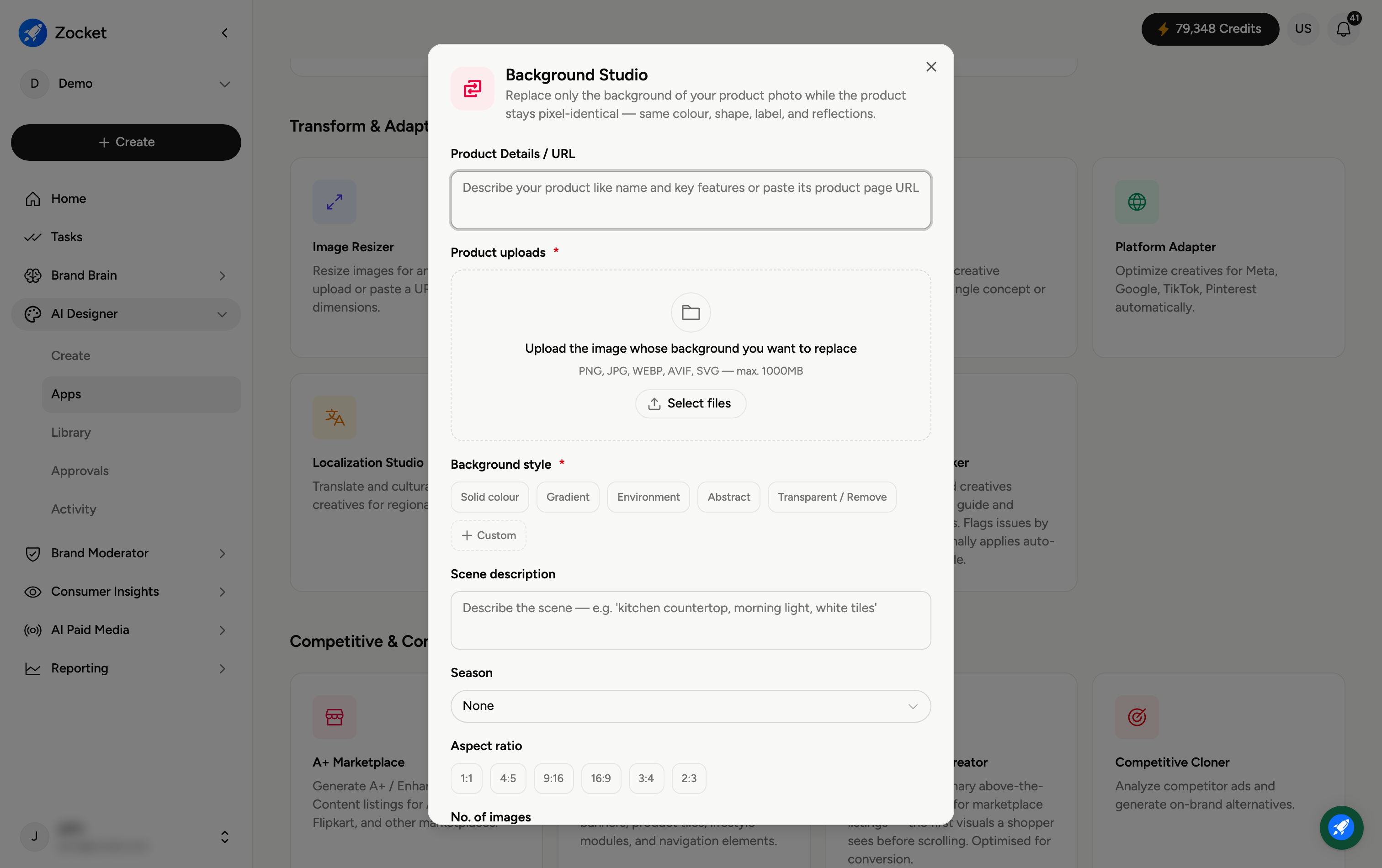
Step 1 — Upload the product and pick a background style
Enter Product Details / URL (required) and, under Product uploads (required), upload the image whose background you want to replace. Then choose a Background style (required): Solid colour, Gradient, Environment, Abstract, Transparent / Remove, or Custom.
Step 2 — Describe the scene and set the output
Scene description — describe the setting (for example, "kitchen countertop, morning light, white tiles").
Season — optional seasonal theming.
Aspect ratio — 1:1, 4:5, 9:16, 16:9, 3:4, or 2:3.
No. of images (required) — 4, 6, or 8.
Step 3 — Replace the background
Add any Additional notes (light direction, palette, mood), then click Replace Background. It opens in Create, where you refine in chat; the results are saved to your Library.
Frequently Asked Questions
Will my product change?
No — that's the whole point. Only the background changes; the product stays pixel-identical (same colour, shape, label, reflections).
How do I get a transparent cut-out (PNG)?
Choose Transparent / Remove as the Background style to remove the background entirely.
When should I use Environment rather than Solid colour?
Solid colour and Gradient for clean catalogue shots; Environment for a realistic lifestyle setting (describe it in Scene description).
Can I get seasonal backgrounds?
Yes — set the Season field, and mention the occasion in Scene description, for themed backgrounds.
Where do the results go?
To your Library (AI Designer → Library) for download.