Compliance Checker audits your creatives against your brand guide and selected rule packs. It flags issues by severity and can optionally apply auto-fixes where possible — a safety net before anything goes live. Open it from AI Designer → Apps → Compliance Checker.
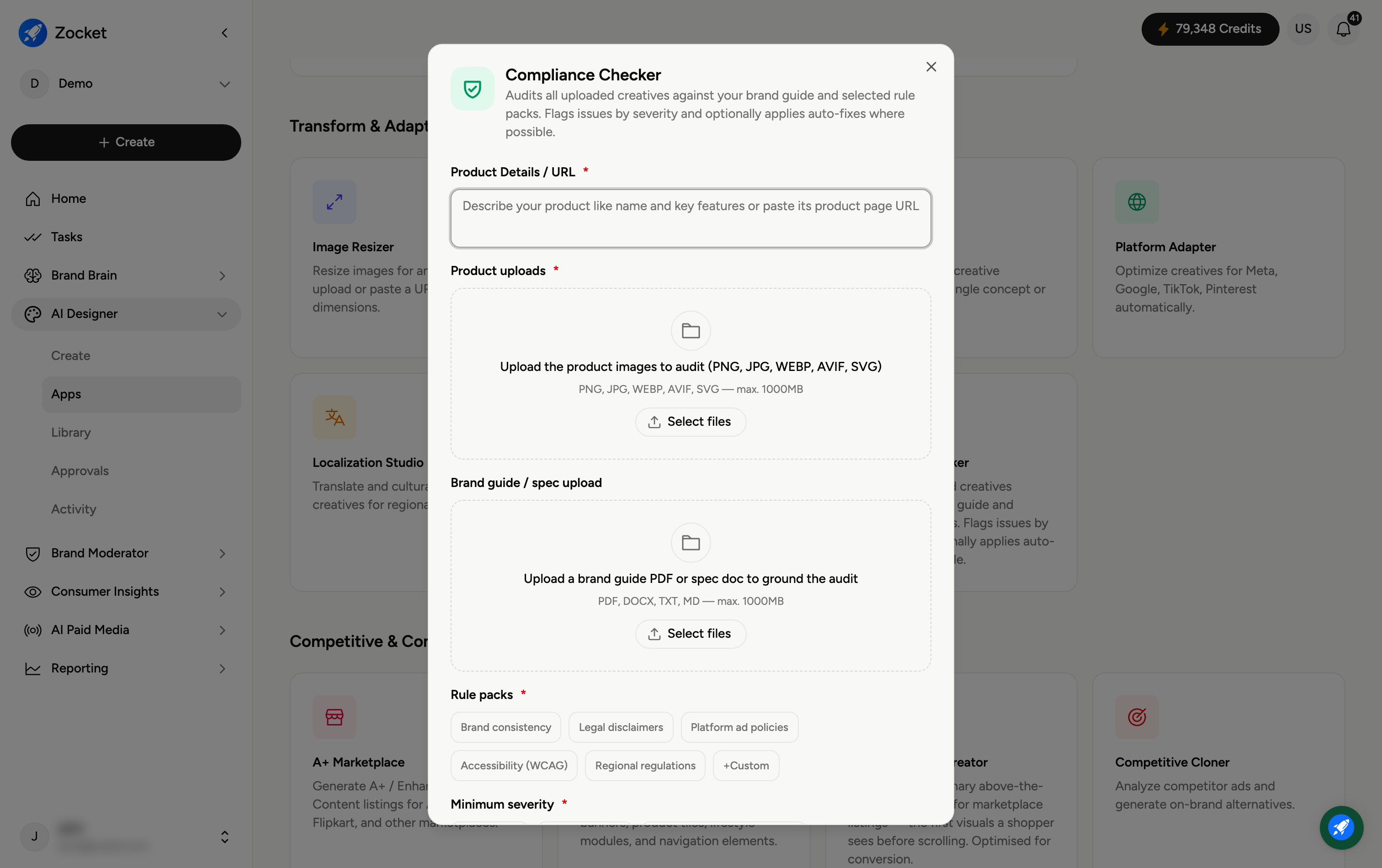
Product Details / URL (required) and Product uploads (required) — upload the creatives you want audited.
Brand guide / spec upload — add a brand guide PDF or spec doc to ground the audit in your actual rules.
Rule packs (required) — choose what to check against: Brand consistency, Legal disclaimers, Platform ad policies, Accessibility (WCAG), Regional regulations, or a Custom pack.
Minimum severity (required) — Critical only, Major & Critical, or All (including Minor warnings).
Auto fix (required) — Off to just flag issues, or On to automatically apply fixes where possible.
Add any Additional notes (for example, "this claim is pre-approved by legal"), then click Run Compliance Check. You get a report of issues ranked by severity, with fixes applied automatically if you turned Auto fix on.
What does it actually check?
Whatever rule packs you select — brand consistency, required legal disclaimers, platform ad policies, accessibility (WCAG), and regional regulations — measured against your uploaded brand guide.
Should I turn Auto fix on?
Turn it On to have safe, automatic corrections applied; leave it Off if you'd rather review every flag and fix manually.
What do the severity levels mean?
Critical means must fix (likely rejection or legal risk); Major is important; Minor covers small warnings. Set the minimum to control how much you see.
Why upload a brand guide?
It grounds the audit in your real standards (colours, logo rules, tone, disclaimers) instead of generic assumptions.
Is this the same as the Brand Moderator?
No — Compliance Checker audits creatives before publishing; Brand Moderator handles incoming comments and messages on your channels.
