
Connectors let you link your social media accounts to Zocket so you can sync and manage content directly from the platform. Find them under Settings → Connectors.
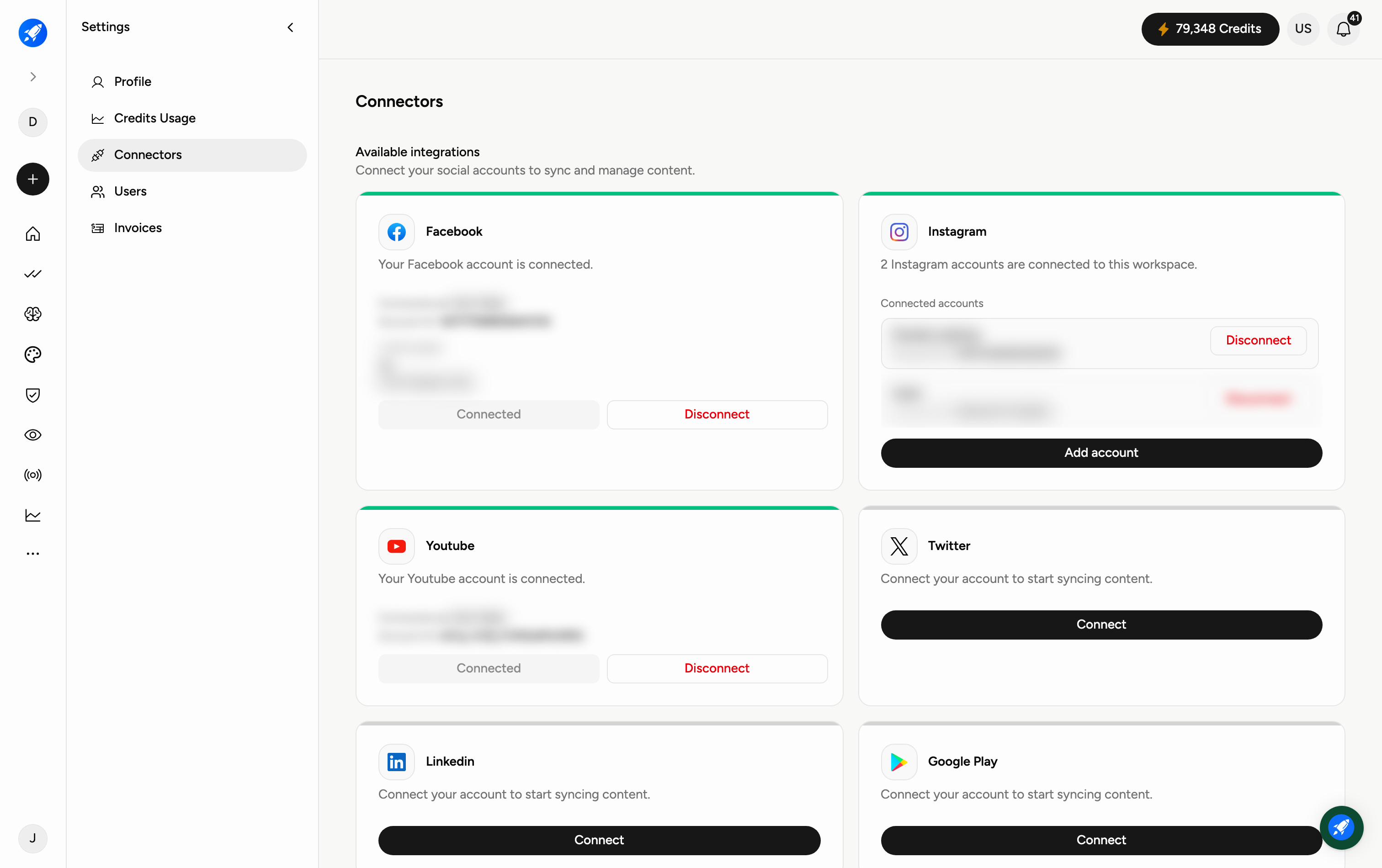
This is different from AI Paid Media → Connectors, which links your ad accounts for performance data. This Settings page is for social publishing and content accounts.
Step 1 — Open Settings → Connectors
Go to Settings and choose Connectors. You'll see the list of available integrations: Facebook, Instagram, YouTube, Twitter (X), and LinkedIn, with Snapchat and TikTok marked Coming soon.
Step 2 — Connect an account
Click Connect on the platform you want to link. You'll be taken through that platform's sign-in and permission flow. Once connected, the card shows which account is linked. Facebook needs one more step: link at least one page to finish setup. Instagram supports more than one account per workspace — use Add account to attach another, and each connected account can be disconnected on its own.
Step 3 — Add more platforms
Repeat for each network you use. Integrations labelled Coming soon (Snapchat, TikTok) aren't available to connect yet — check back later.
Frequently Asked Questions
Which social platforms can I connect?
Facebook, Instagram, YouTube, Twitter (X), and LinkedIn today. Snapchat and TikTok are marked Coming soon.
How is this different from the Connectors under AI Paid Media?
These are social content accounts for syncing and managing content. The AI Paid Media connectors link ad accounts for reporting and paid-media data.
What happens when I click Connect?
You're sent through that platform's own login and permission screens; after approving, the account is linked to Zocket.
Can I connect more than one network?
Yes — connect each platform you use, one at a time.
A platform shows "Coming soon" — can I use it?
Not yet. Those integrations aren't available to connect until Zocket enables them.