
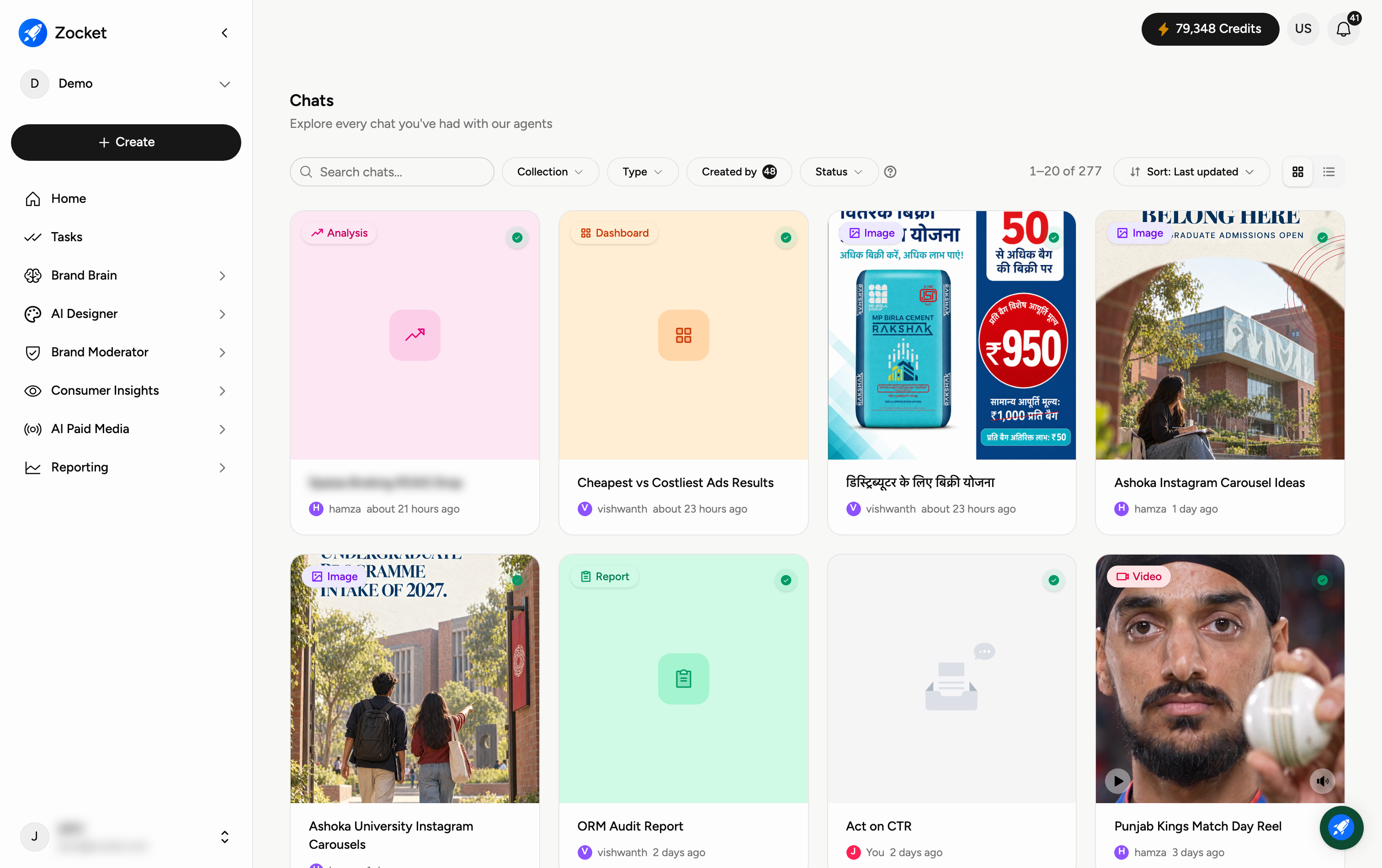
Most of what you make in Zocket lives inside a chat — a report, a dashboard, a set of creatives. When a colleague or client needs to see it and does not have a Zocket login, you share the chat rather than exporting it.
Why you'd use it
It is how work actually leaves the platform. A monthly ORM review, a performance report for a client, a creative set for sign-off — all of it travels as a share link rather than as an attachment, so the recipient sees the live thing instead of a stale PDF.
Step 1 — Find the chat
Open Chats in the left sidebar. Every conversation you have had with any agent is listed here. Narrow it with the Collection, Type, Created by and Status filters, or search by name.
Step 2 — Open the chat's actions
Each chat card has an actions menu. It gives you five things:
Rename
Share
Move to collection
Star
Delete
Choose Share to produce a link you can send outside Zocket.
Step 3 — Check who you are sending it to
A share link is meant to be opened by someone without a Zocket account. Treat it the way you would treat any link to a document: anyone who has it can open what it points at. Before sending one outside your company, look at what the chat actually contains — spend figures, customer comments, unreleased creative — and decide whether all of it should travel.
Sharing a dashboard or a report
A dashboard and a saved report each have their own Share action, and a dashboard's is more precise than a chat's. Open Share on a dashboard and you get two separate things:
A public link — switch it on and anyone holding the link can view the dashboard, at the access level you choose beside it.
Invite by email — for named people outside your organisation.
Worth knowing: everyone inside your own organisation can already see the dashboard without any link. The public link and the email invite both exist for people outside it — so turning on a public link is a deliberate step outward, not a convenience for colleagues.
For a saved report, use the Share action on the report card. See Reporting: Dashboards and Reporting: Reports for the rest of each.
Good to know
Sharing does not move the chat. It stays in your Chats list and stays yours to rename, move or delete.
Deleting the chat is the way to retract what you shared.
Use collections to keep client-facing chats separate from internal working ones, so the right thing is easy to find when someone asks for it.