
The Media Library is where every asset your agents generate is stored, organised, and reused. Manage your own uploads here too. Open it from AI Designer → Library.
Why you'd use it
The governed home for every approved asset, generated by the AI, uploaded by your team, or pushed in from an agency. Replaces the chaos of Drive folders, Figma libraries, and a DAM that nobody updates.
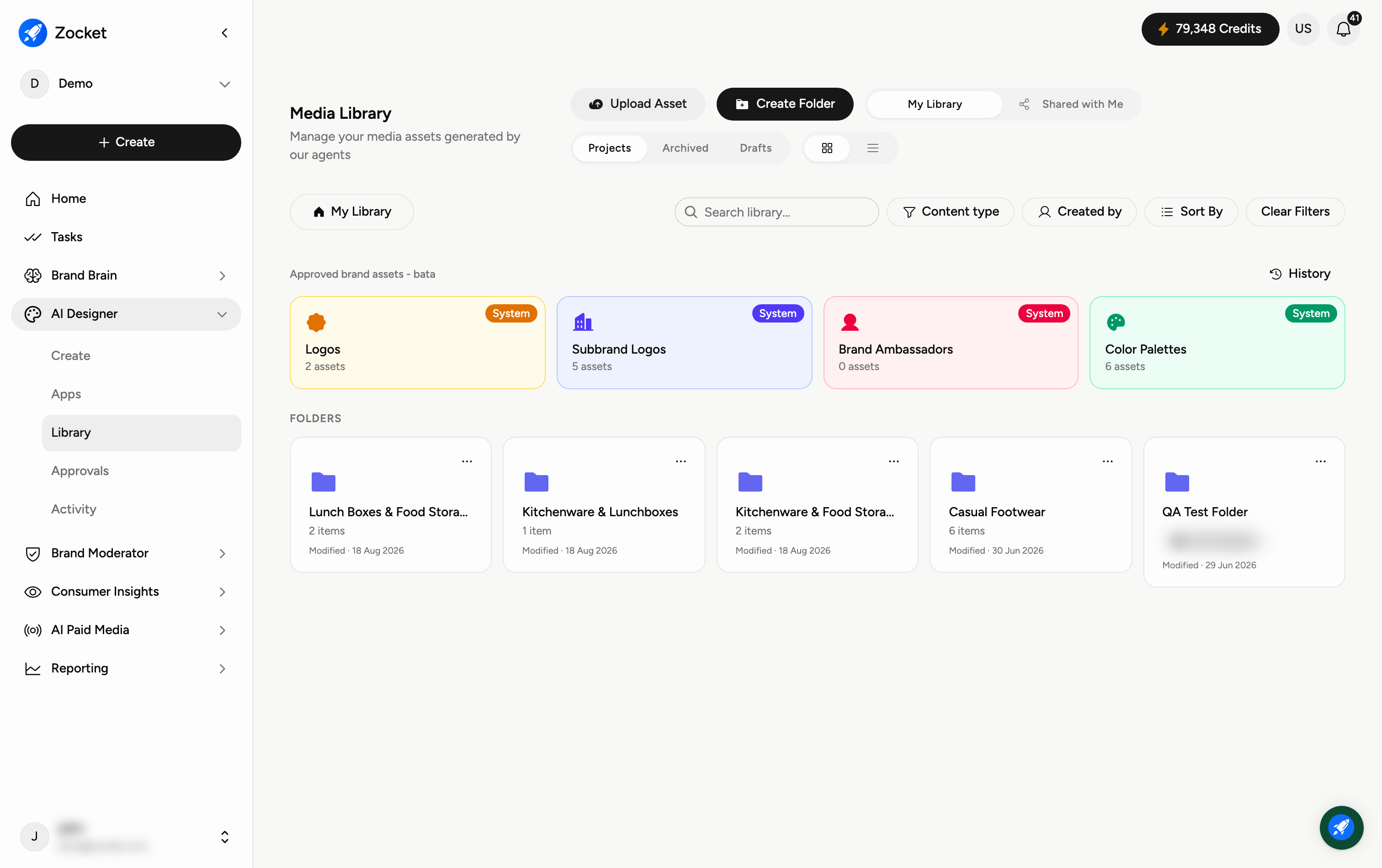
Step 1 — Manage assets and folders
The toolbar at the top gives you the main actions:
Upload Asset — bring in your own images or files.
Create Folder — organise assets into folders (for example, by campaign or product).
My Library / Shared with Me — switch between your assets and ones shared with you.
Below, the Projects, Archived, and Drafts tabs separate finished work from archived and in-progress items, and the grid/list icons switch how assets are displayed.
Step 2 — Find assets fast
As your library grows, use the controls on the right to narrow it down: search to find by name, Content type to show only images or videos, Created by to see one person's work, Sort By to reorder, and Clear Filters to reset.
Step 3 — Work with folders and assets
Each folder shows its name, how many items it holds, any tags (such as a product line), and when it was last modified. Click a folder to open it and view or reuse the assets inside; use the … menu on a folder for more options.
When to come here
Before generating something new, check if an approved version already exists. When localizing a campaign across regions. When an auditor asks "show me every creative we ran for the Diwali campaign last year."
Frequently Asked Questions
Where do my generated creatives go?
Everything AI Designer creates is saved here automatically, so you can find, reuse, or download it later.
Can I upload my own images?
Yes — click Upload Asset to add your own files, then use them in creatives or organise them into folders.
What's the difference between Projects, Archived, and Drafts?
Projects are your active and finished assets, Drafts are works in progress, and Archived holds items you've set aside but don't want to delete.
What does "Shared with Me" show?
Assets that teammates have shared with you, as opposed to the ones in your own library.
How do I keep a big library organised?
Use Create Folder to group assets, add tags, and rely on search, Content type, Created by, and Sort By to find things quickly.
Can I see only what one teammate made?
Yes — use the Created by filter.
Can I keep our approved brand assets here?
Yes. Approved brand assets sits above your folders and holds Logos, Subbrand Logos, Brand Ambassadors and Color Palettes, so the agents and your team build from the approved version rather than whatever was to hand. Use History, top-right, to see how that set has changed.
Where do our brand colours live?
Under Approved brand assets, in the Color Palettes card. That row also holds Logos, Subbrand Logos and Brand Ambassadors — all marked System, and scoped to the brand you are working in. Keeping them here means a creative can be built on the approved palette without anyone pasting hex codes from a deck.
Can I preview a file without downloading it?
Yes. PDFs, office documents, concepts and blog drafts preview in place, so you can check you have the right asset before you use or share it.